Your first set, start to finish
Do this once, on a new install. You load the catalogue, add one set, check its parts and see where the gaps show up. It takes about half an hour, most of it counting parts. Every picture comes from an invented collection, so your own set numbers and names will differ.
Before you start
You need Brick Work running. Follow the install steps in the README and come back when docker compose up -d has finished. You also need one set you own, preferably a small one. It does not have to be complete.
1. Open Brick Work
- Open
http://localhost:3333in your browser and sign in with the password you set indata/.env. - You land on Sets. It says 0 sets and, under Nothing here yet., shows four numbered steps: Load the catalogue, Set up your keys (optional), Bring your collection in and See how the inventory works. This is Get started. You can come back to it later under Tools & Admin → Get started.
The collection is empty, so the third step shows Add a set greyed out until the catalogue is loaded.
2. Load the catalogue
- In step 1, select Download the catalogue. It fetches Rebrickable's public files (17 MB, no login, no key). A progress bar and a list of steps show how far it is; it takes about a minute.
- When it is done, step 1 reads Done and says how many items and colours the catalogue holds, for example "658 items and 44 colours" on the invented demo, but far more on a real install.
The catalogue is what lets Brick Work know a set's parts without asking a website each time. Rebrickable asks for at most one download a day, so do not repeat this step.
3. Skip the keys
Step 2 is for BrickLink, Rebrickable and Brickset keys. They bring prices and part lists for sets newer than the catalogue. You do not need them now.
- In step 2, select Skip for now.
You can set them up later. The note under the step says what you give up without them: no prices, and a set newer than the catalogue keeps its number until a Rebrickable key brings its part list. Everything else works.
4. Add one set
- In step 3, select Add a set. (Add at the top of the page opens the same screen.)
- Under Search, type the set's number or its name. The tabs Paste, File and Photo are other ways in; you do not need them now.
- Leave What on Set and Where on Owned.
- Next to your set in the results, select Select. The button at the bottom now reads Review 1 item.
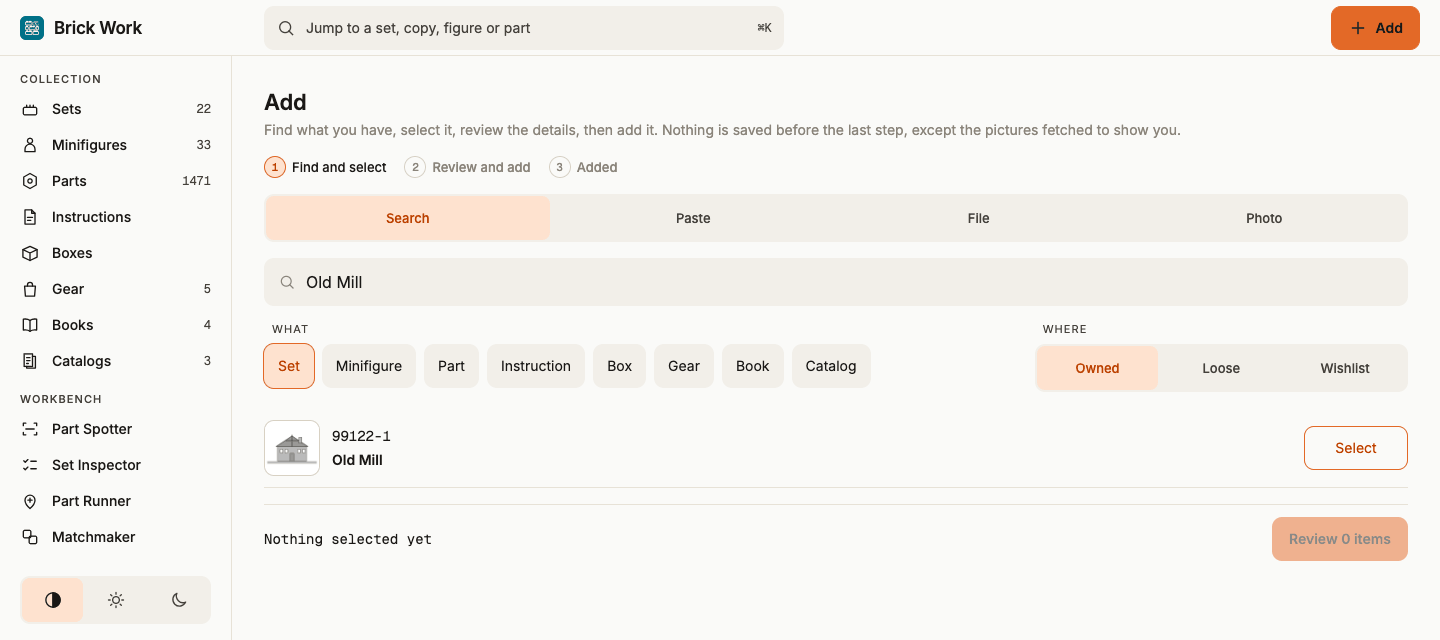
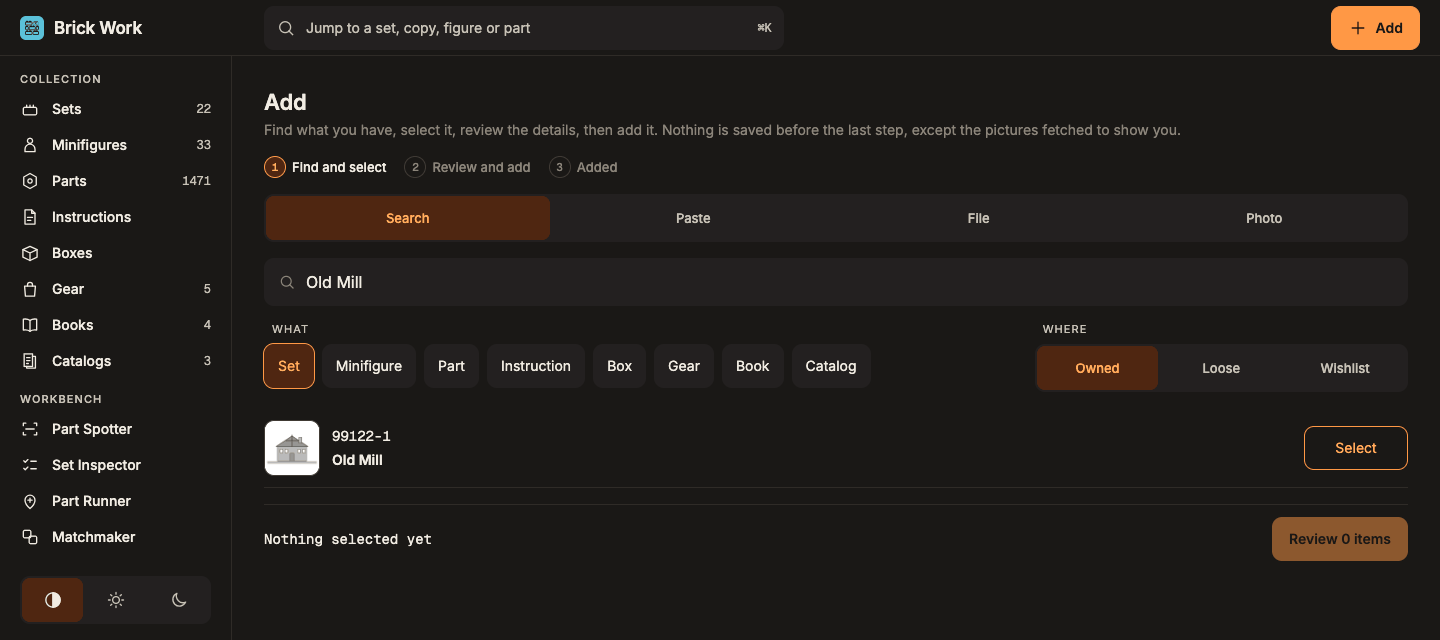
- Select Review 1 item. The review shows one row with Quantity, Where, Condition and Completeness. Set Condition to New or Used. Leave Completeness on Unknown · from checks: the check you run next decides it. Under the row, Part list shows which part list the copy gets; keep the preselected one.
- Select Add 1 item to the collection.
The page now reads Added 1 item and shows a progress bar while the copy is made. Wait for it to finish. A set the catalogue knows needs no key. Its picture and its part pictures load in the background.
5. Open the set
- Open Collection → Sets and select your set.
- Find Consists of and its Parts tab. It says Parts not checked and offers Check parts. Brick Work knows the part list but not yet what you hold.
6. Check its parts
- Select Check parts. This opens Set Inspector on Start a check, which shows how many parts and figures the set has.
- Under Order, keep Inventory order. Select Start.
- Each part appears alone: a picture, the name, the colour, the number and how many the set should have. Count what you have.
- If all are there, select Found N. N is the number shown.
- If you have fewer, lower the number with −, then select Found N with your count. The difference is recorded as missing.
- If none is there, select Missing.
- If you cannot tell now, select Skip for later.
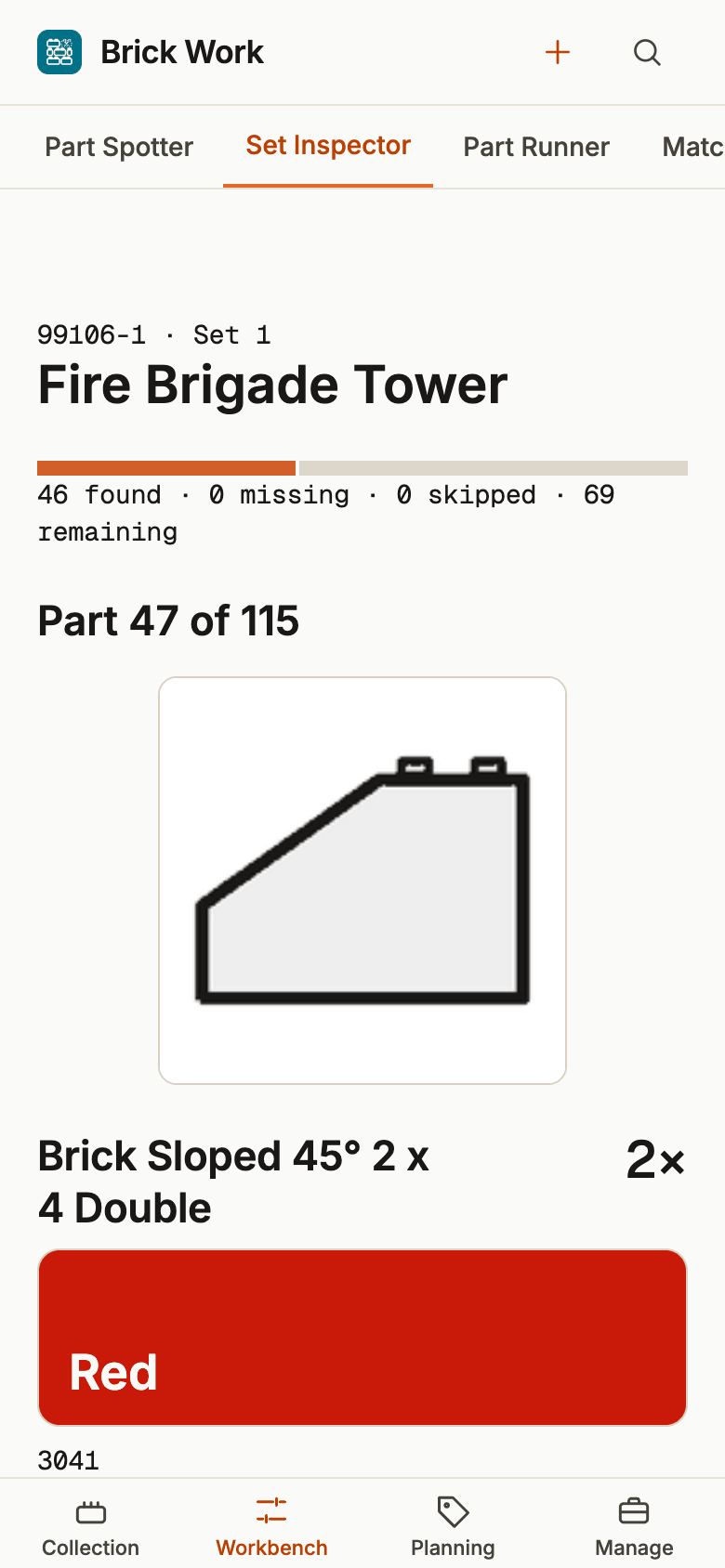
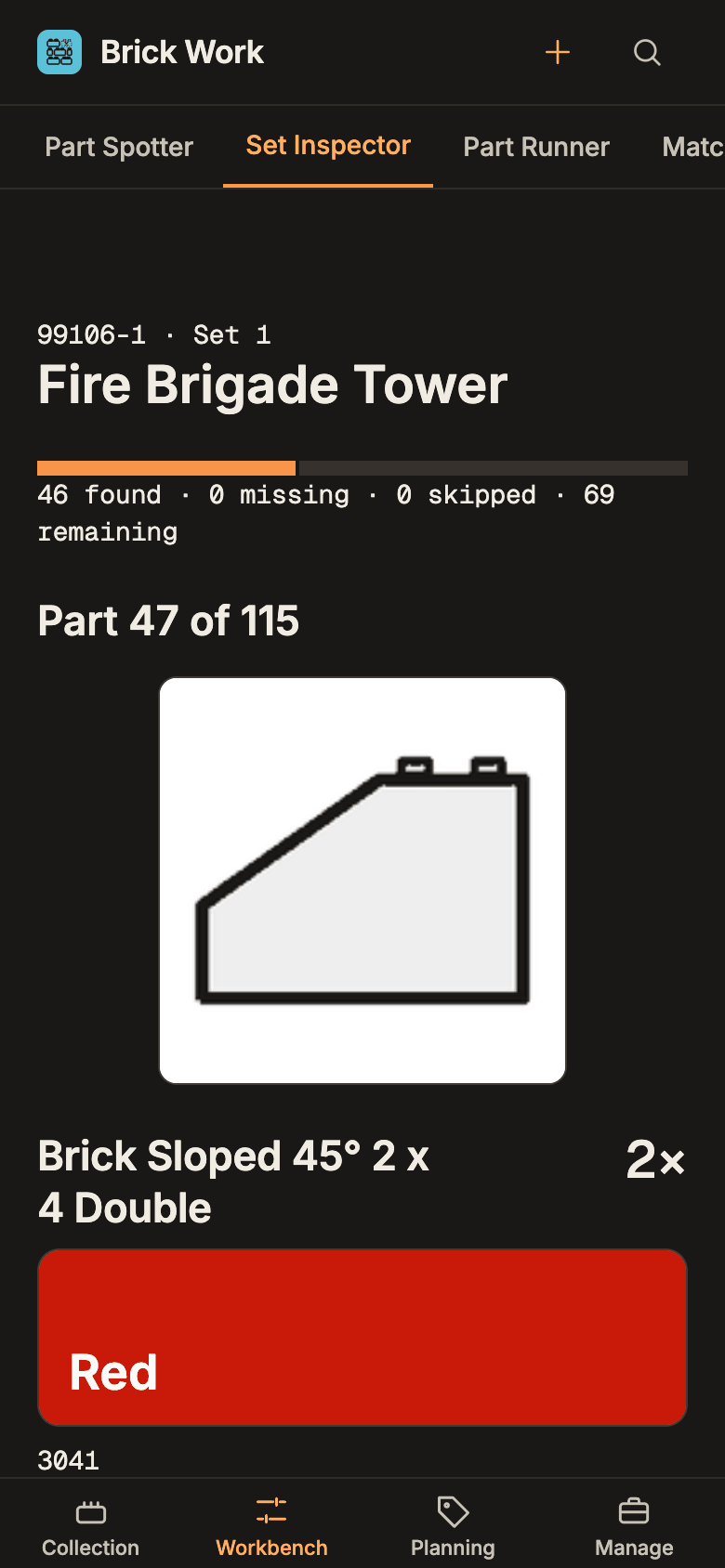
- Keep going. Every answer saves as you go, so you can close the page and pick the check up again from Workbench → Set Inspector, where the copy sits under In progress.
- If the set has minifigures, they come after the parts as a Figure review. If it has spare parts, you are asked Include spare parts?. Spares are never counted as missing.
- After the last part, the end of the check shows three steps: 1 Skipped, 2 Missing, 3 Save. Work through them: Check the N skipped parts or Leave them unchecked, then read Missing so far.
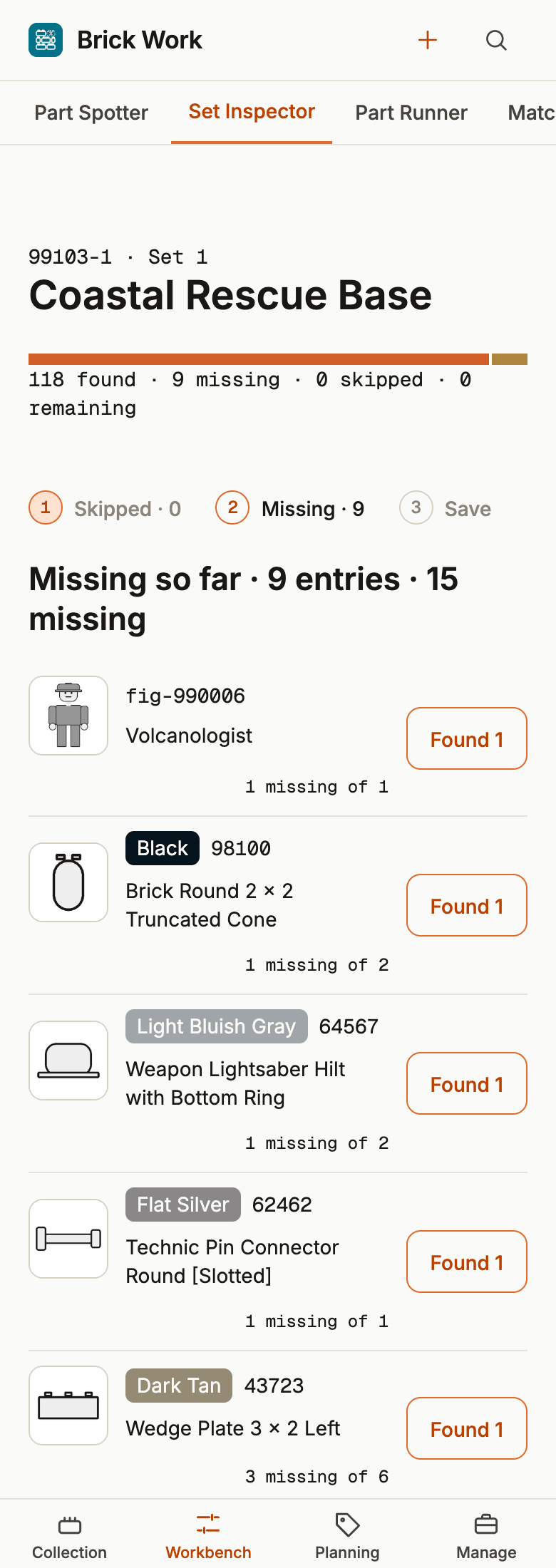
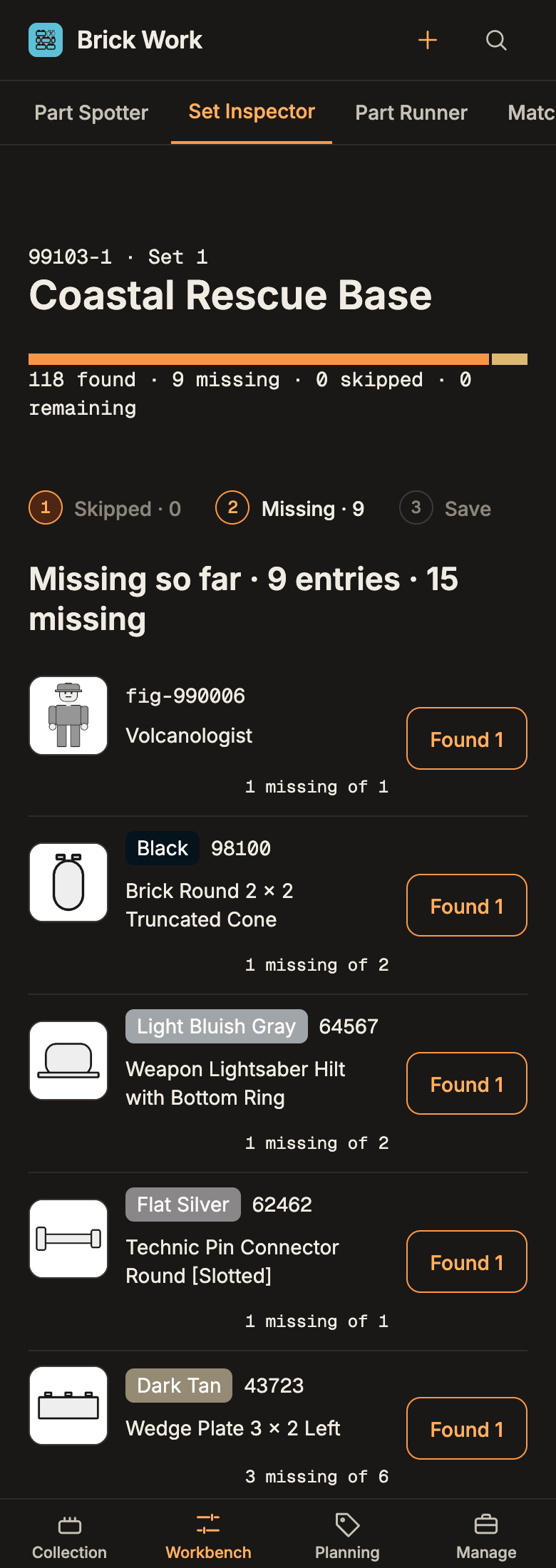
- Select Done · N still missing. In the last step, tick Set is checked and select Done.
All the buttons, the keyboard keys and the variants are in Check a set's parts.
7. See what is missing and where it shows up
- Go back to your set under Collection → Sets. Under Consists of, the Parts tab now has a line such as 19 parts missing, 8 in loose stock, a bar with 340 of 359 parts present and each missing part as a card with Found 1. (The numbers are from the invented demo.)
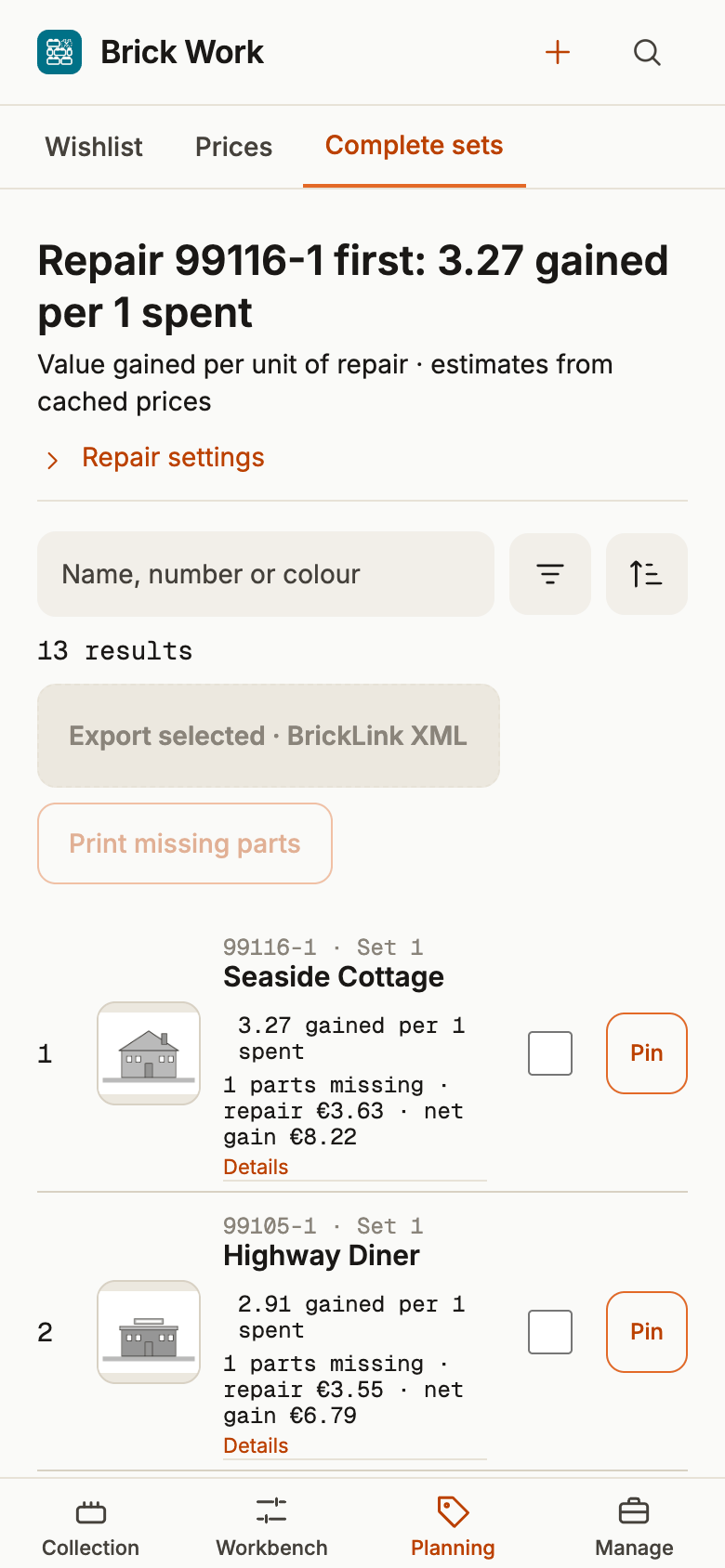
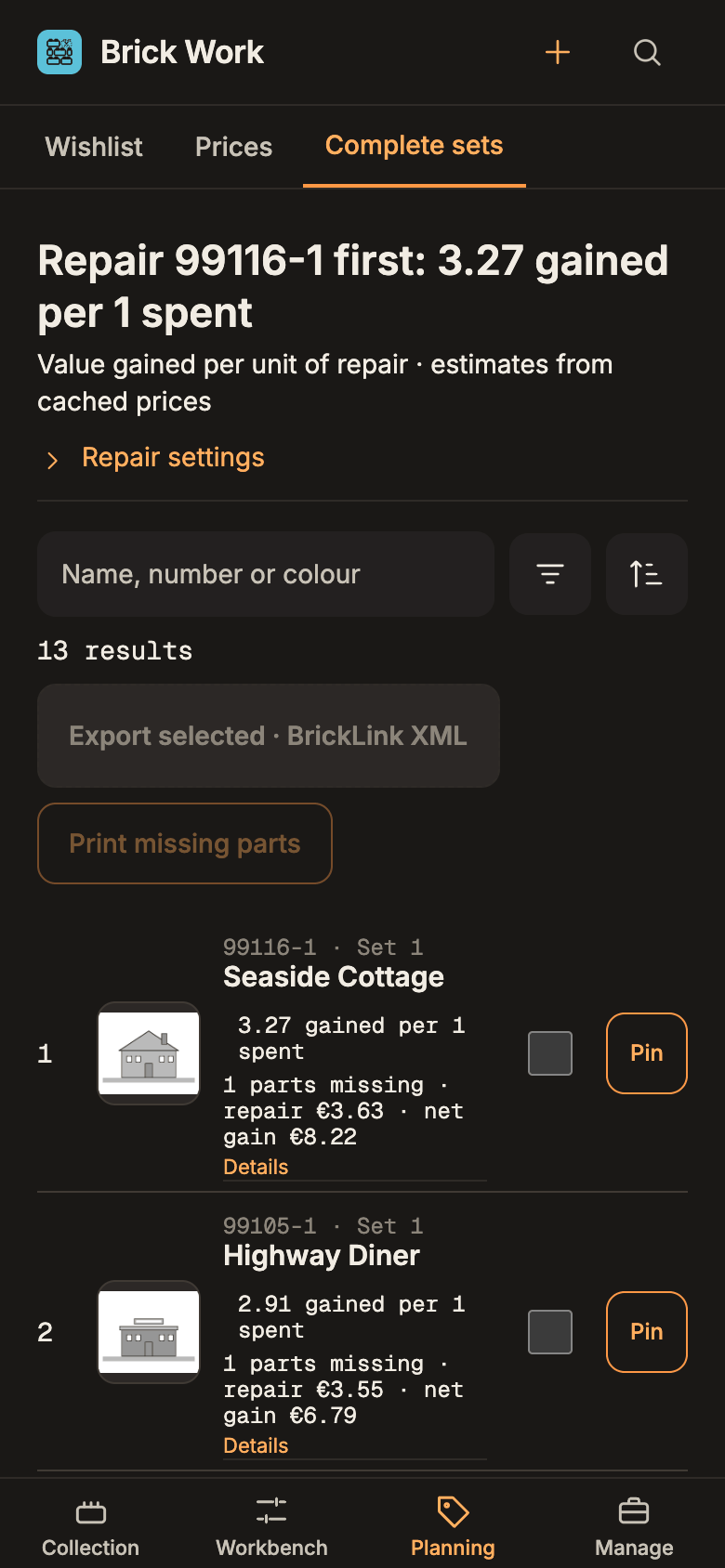
- Open Planning → Complete sets. It lists every copy with recorded gaps, here yours. It ranks them by what a repair is worth and offers the missing parts as a BrickLink XML export or a printable list. This is the page for deciding what to buy or fix first.
- Open Workbench → Part Runner. Under Pick for which sets? it lists the same copy with the number of parts it is missing, if any. This is where you go to pull missing parts from your drawers.
The missing counts you recorded are what these pages, Matchmaker and the exports work from. If you checked every part and none was missing, the set shows no gaps. The copy then becomes Complete because you ticked Set is checked.
What you did
You loaded the catalogue, added a set, counted its parts and saw where the gaps appear. From here:
- Finish a half-built set takes the gaps all the way to a complete copy.
- Bring your collection in from another app if your collection lives elsewhere today.
- Check a set's parts for every variant of what you just did.