Find the sets in a bulk lot
You bought a bag of mixed loose bricks and suspect that several sets were thrown into it. In this tutorial you let Brick Work rank the sets the bag may hold, tell it about a sticker you cannot read, tick off the parts of one set as you dig them out, and end with an owned copy of that set.
It takes about 15 minutes. You need a Brick Work install with the catalogue loaded and a lot of loose parts: filed one piece at a time with Part Spotter or entered some other way. The pictures come from the invented demo collection, so your numbers will differ.
1. See which sets the lot may hold
- Open Collection → Parts, group by lot, and open the lot. Below Parts in this lot is Which sets are in this lot?
- Read the first candidate. The bar and the percentage are the evidence for that set compared with the best candidate, which scores 100%. It is not a probability.
- Read the reasons under it, for example 7 of 9 distinctive parts found. A distinctive part is one that 25 sets or fewer hold, so a rare printed part says far more than a common brick.
- Select Details on a candidate. Found in the lot shows the distinctive parts the lot has, Not found yet the ones you would still have to dig for.
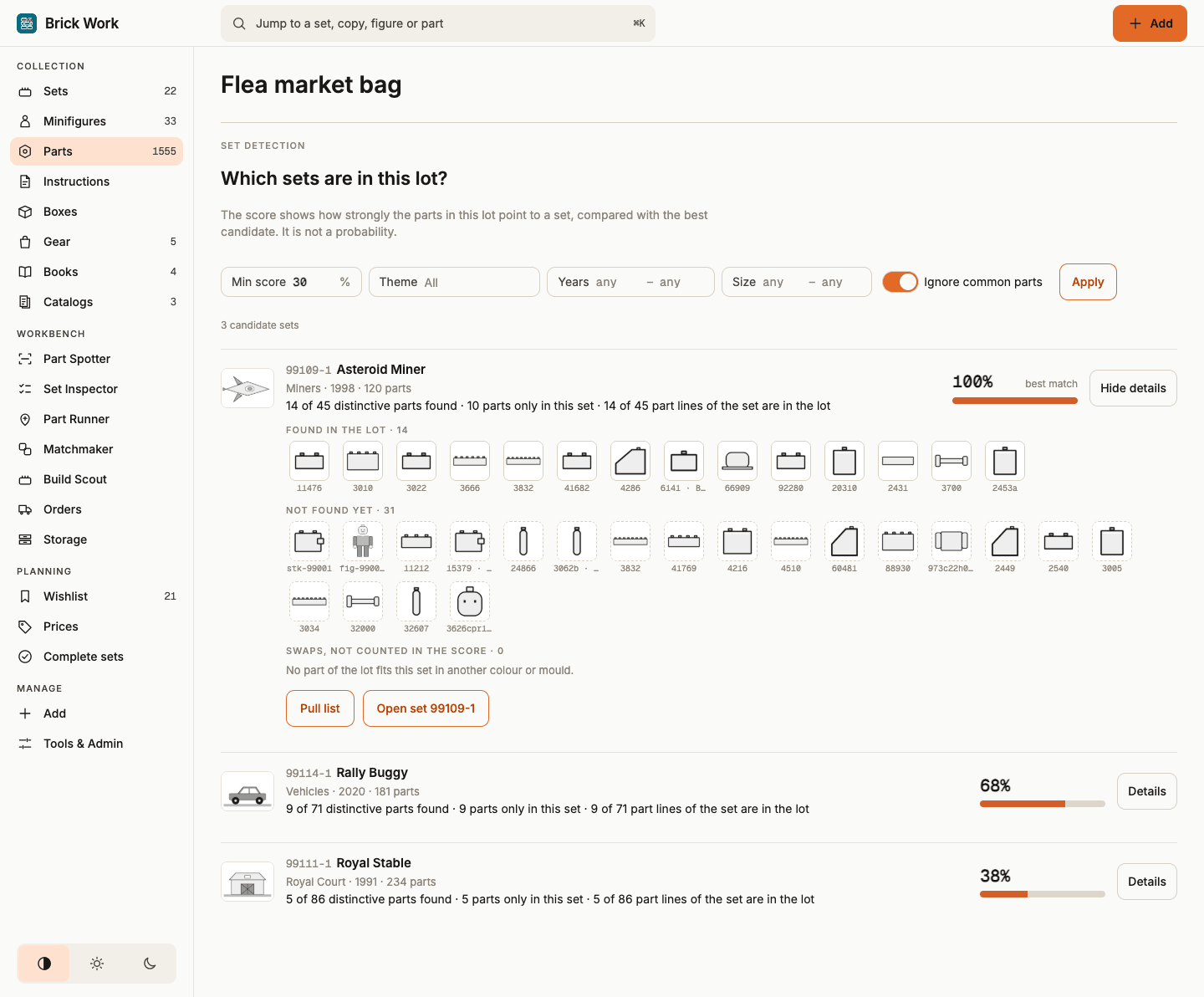
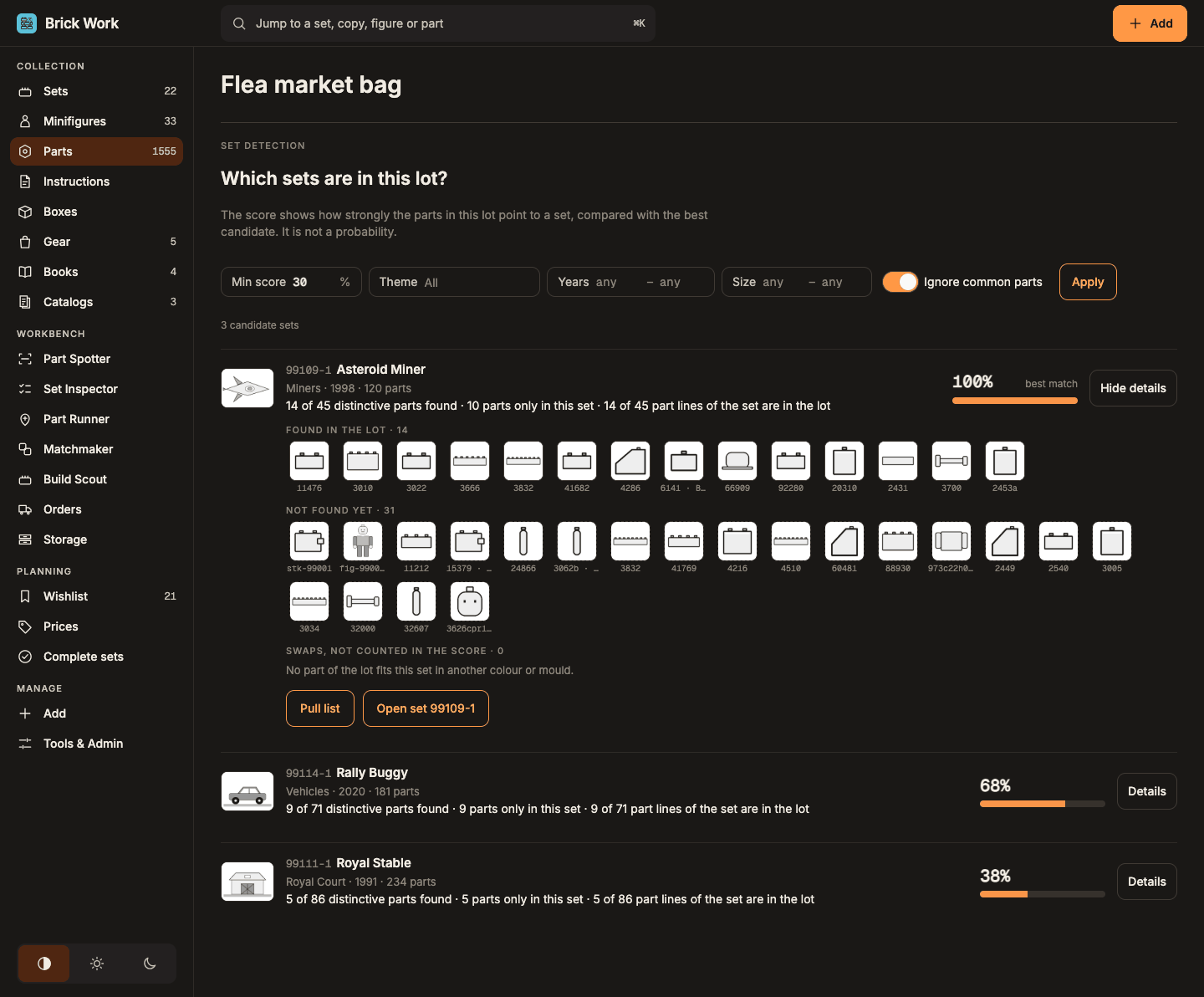
The list only reads; nothing in your collection changes. Min score, Theme, Years and Size narrow it, and Ignore common parts (on by default) leaves out bricks that hundreds of sets hold. Find the sets in a bulk lot has every filter.
2. Tell it about a sticker
A sticker is the one thing a photo of a part cannot show: you see the base part, the print is under your thumb. If you flagged a part as having a sticker when you filed it (in Part Spotter, Has a sticker under Quantity), the lot page shows Sticker · not chosen on that line.
- Select Which sticker? on the flagged line. The chooser lists the sets that hold that part in its colour and a sticker sheet.
- Select This one on the set whose sticker you recognise. The line now reads Sticker · set …, and the set's reasons say the sticker is confirmed.
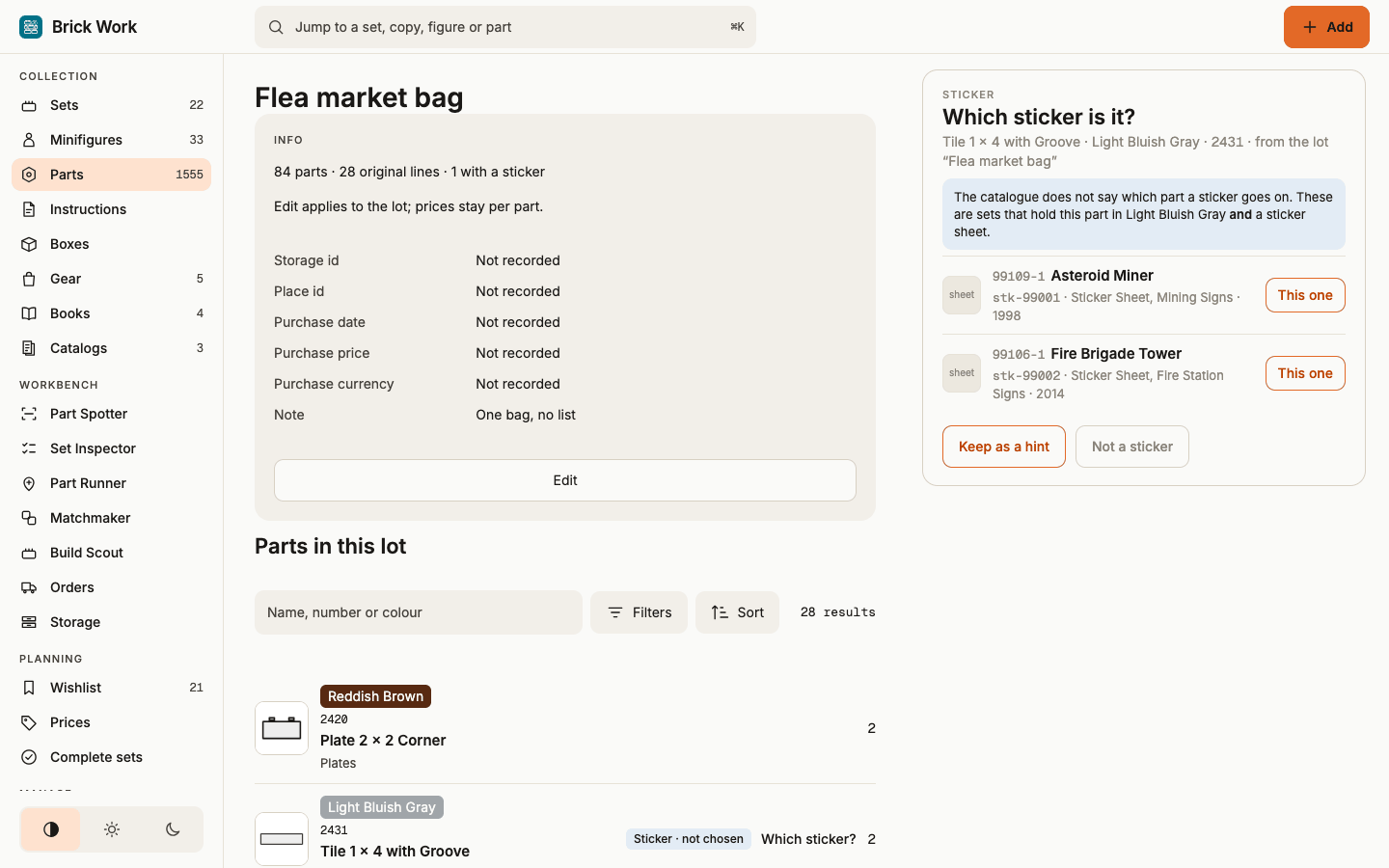
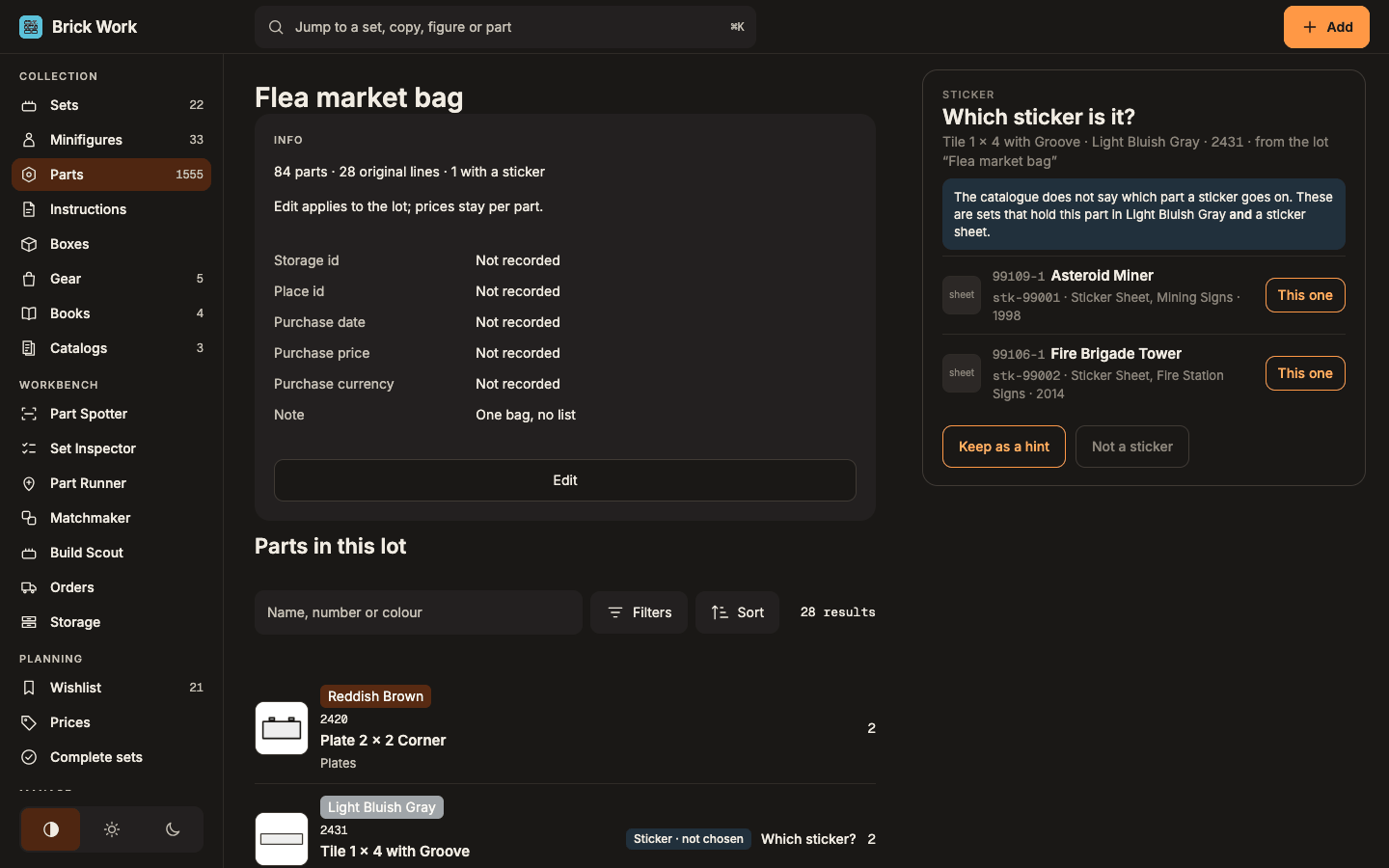
A confirmed sticker is strong evidence for its set; an open one lifts the sets that could hold it only a little. Keep as a hint leaves the part open and Not a sticker removes the flag. Choosing is one step with Undo. See Mark a sticker.
3. Dig the set out with the pull list
- On the candidate you want, select Pull list. It shows every part of the set, spare parts left out, grouped by category, with a counter on each line (2 of 4).
- Parts the lot already holds count as found. Use +, − or the box on the left as you find the other pieces. Each tap is saved at once, so you can stop and come back on another device.
- Show (To find, Found, All), Search parts and Sort keep a long list manageable.
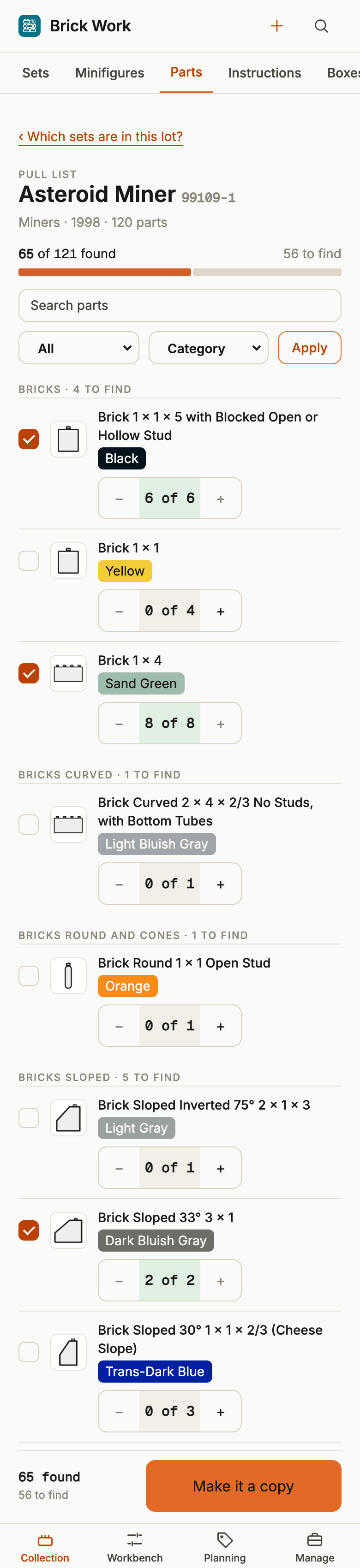
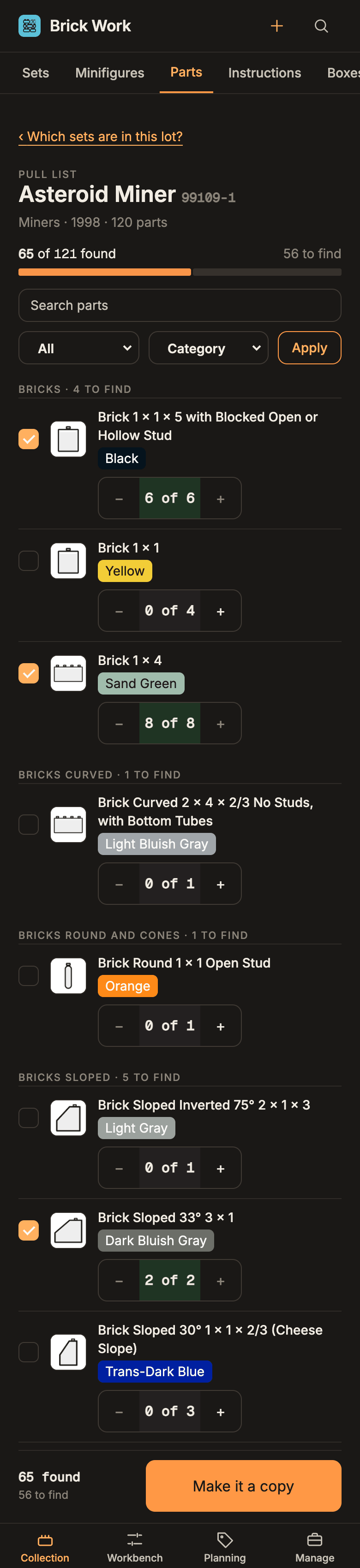
Saving your ticks changes nothing else: the ticked pieces are filed in the lot only when you make the copy in the next step.
4. Make it a copy
- Select Make it a copy. The confirm shows three numbers: the pieces that move out of the lot, the pieces recorded as missing on the copy, and the pieces that stay in the lot.
- Select Make copy of ….
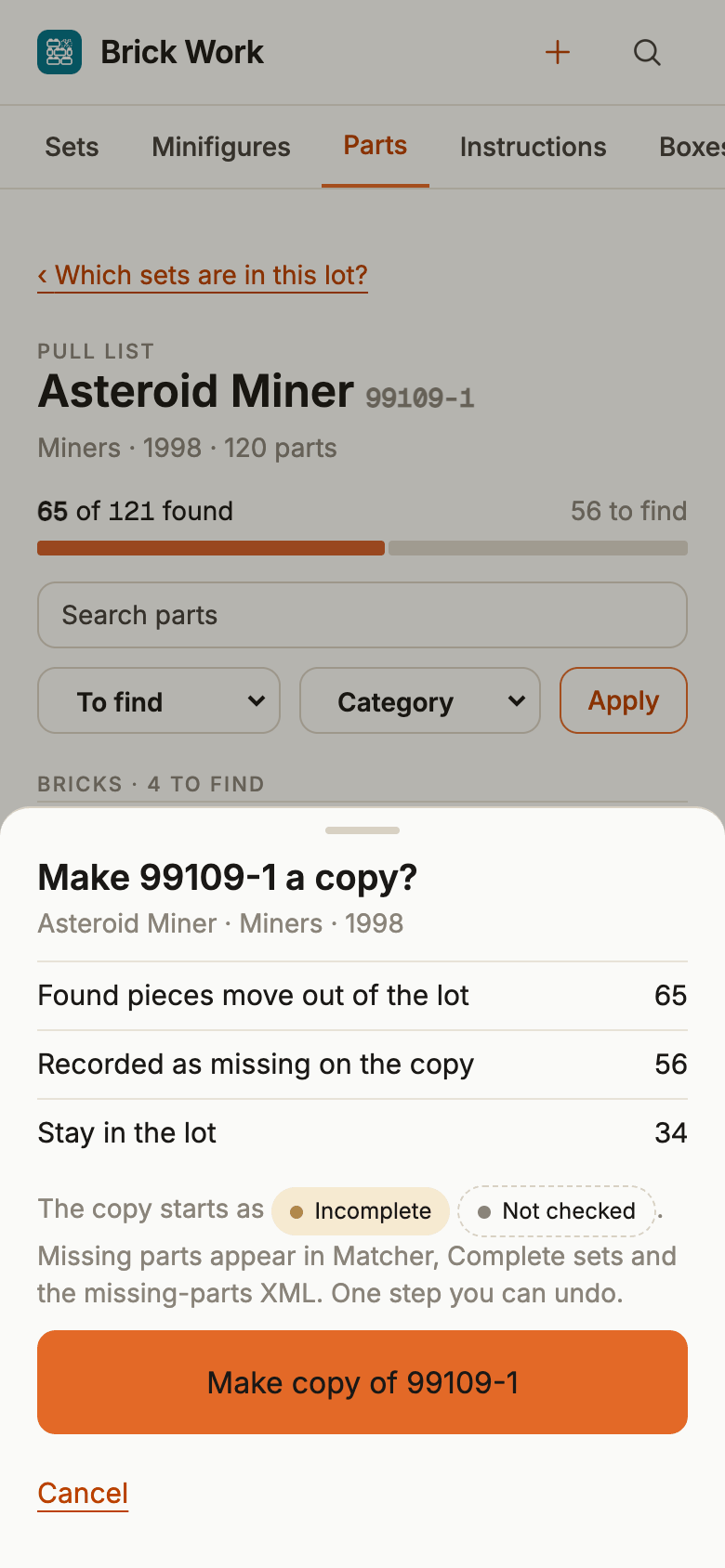
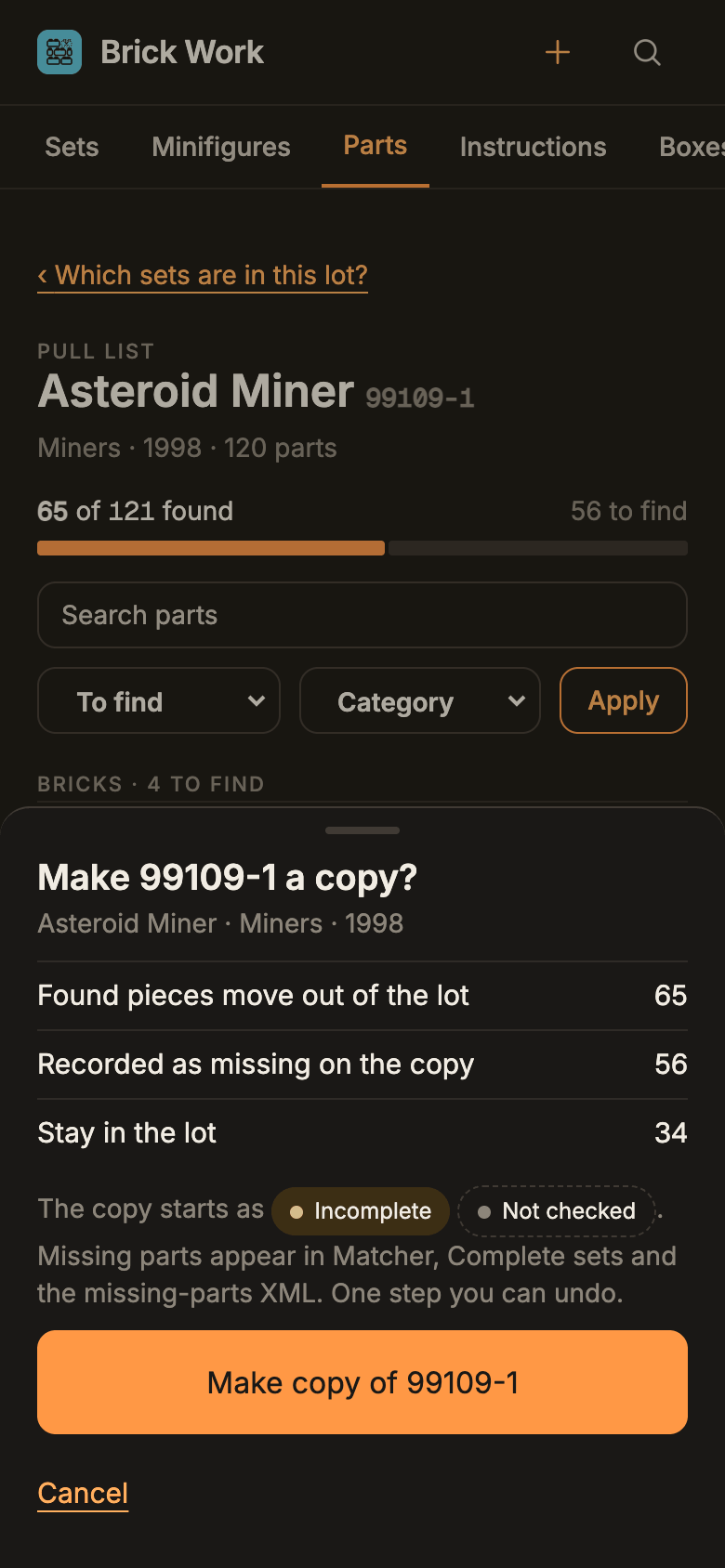
One step does everything: the ticked pieces are filed in the lot, the found pieces move into a new copy of the set, and what you did not find is recorded as missing on it, so the copy shows in Matchmaker, Complete sets and the missing-parts file. The page you come back to shows Open the copy and Undo. Run set detection again for the next set; the lot keeps the leftovers.
What you did
You ranked the sets a bag may hold, confirmed a sticker, collected one set's parts and turned them into a copy. From here:
- Pull a set out of a lot for the refusals and the API.
- Set scoring for how the evidence is weighed.
- Check a set's parts to check the new copy against its inventory.
- Undo a change.