Build from what you have, and order the rest
Your loose parts may already make a set you do not own, or a set you own may only lack a handful of parts. In this tutorial you let Build Scout rank the catalogue by how much of each set your stock covers, turn the best one into a copy, and collect the missing parts of several sets into one BrickLink wanted list.
It takes about 15 minutes. You need a Brick Work install with the catalogue loaded, a good amount of loose stock and some copies with recorded missing parts. The pictures come from the invented demo collection, so your numbers will differ.
1. Rank the catalogue by your stock
- Open Workbench → Build Scout.
- Each row is a set, best first. The bar and the percentage say how much of its parts your loose stock covers; on the right are the missing parts, the missing minifigures and an approximate cost to complete.
- Narrow the list: Parts from chooses which stock counts (loose stock, lots, storages), Min is the least percentage, and Theme, Years and Size keep matching sets only.
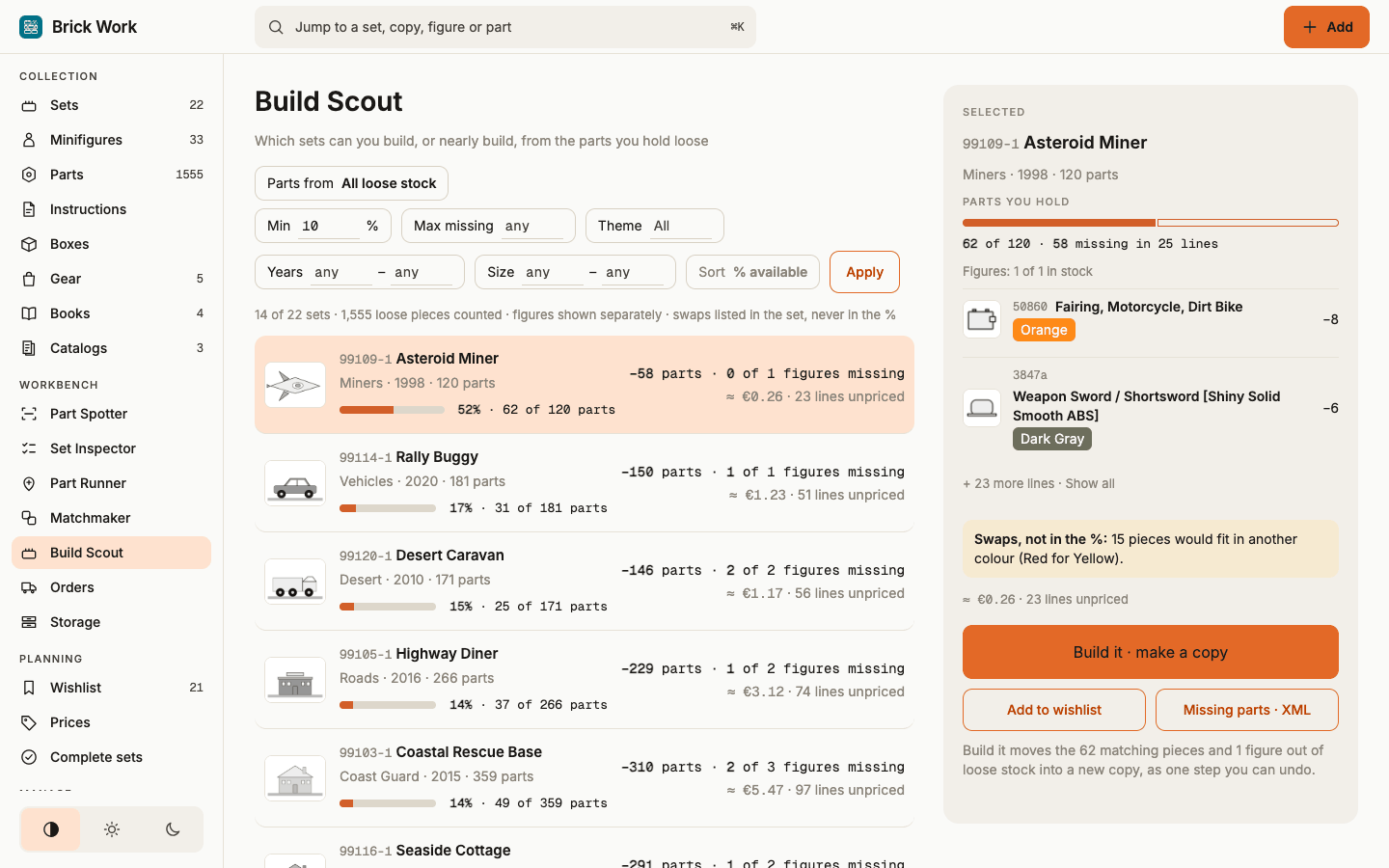
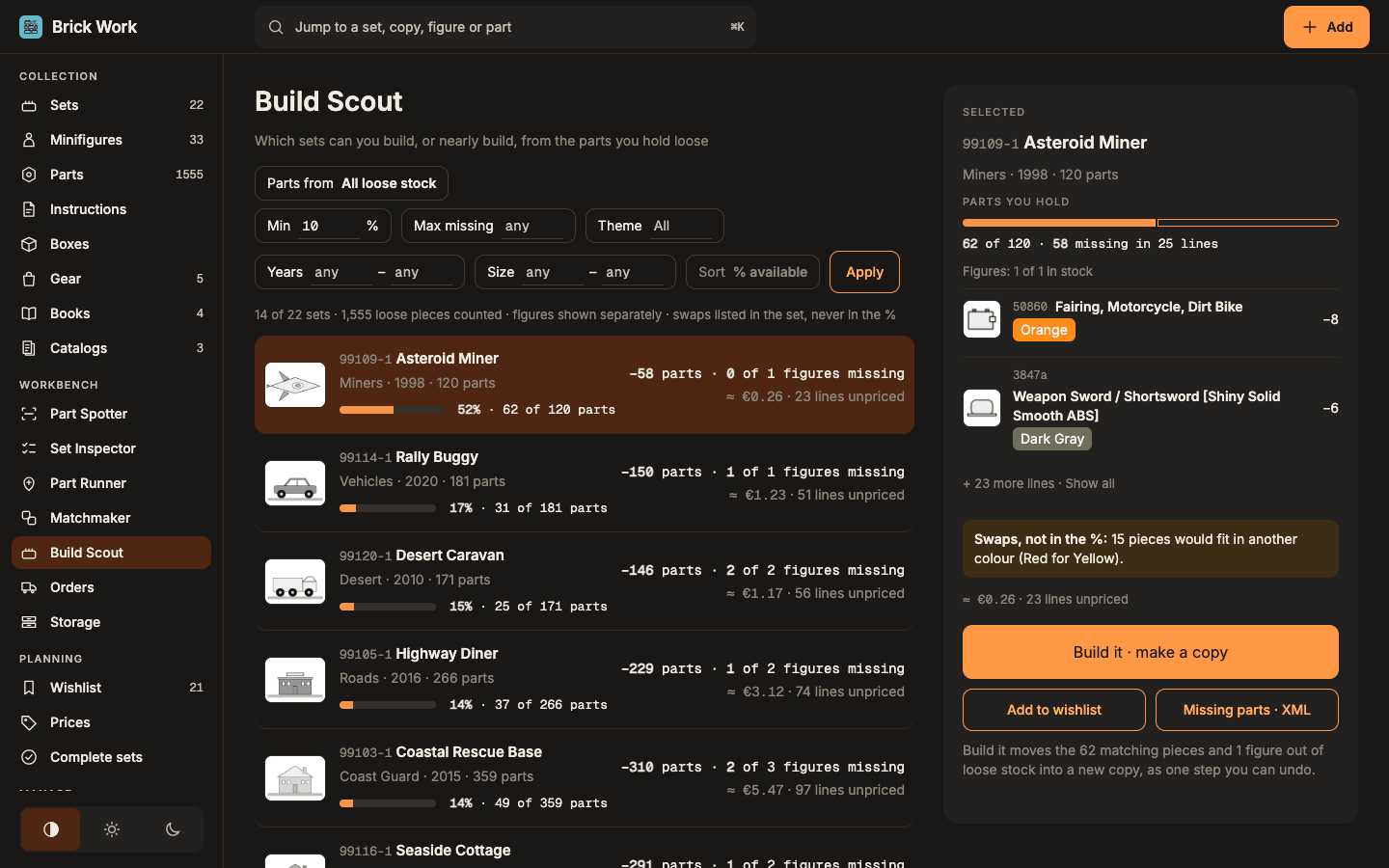
The percentage counts the set's own parts only. A part in another colour is listed apart as a swap and never counted, and minifigures count as whole figures, not as their parts.
2. Look at one set and build it
- Select a set. On a wide screen its details appear beside the list; on a phone the set opens as a page. You see Parts you hold, the biggest missing lines and the figures you hold.
- Select Build it · make a copy. The parts and whole figures your stock covers move into a new copy, and what the stock lacks is recorded as missing on it.
- Undo puts the stock back and archives the copy, as long as neither has changed since.
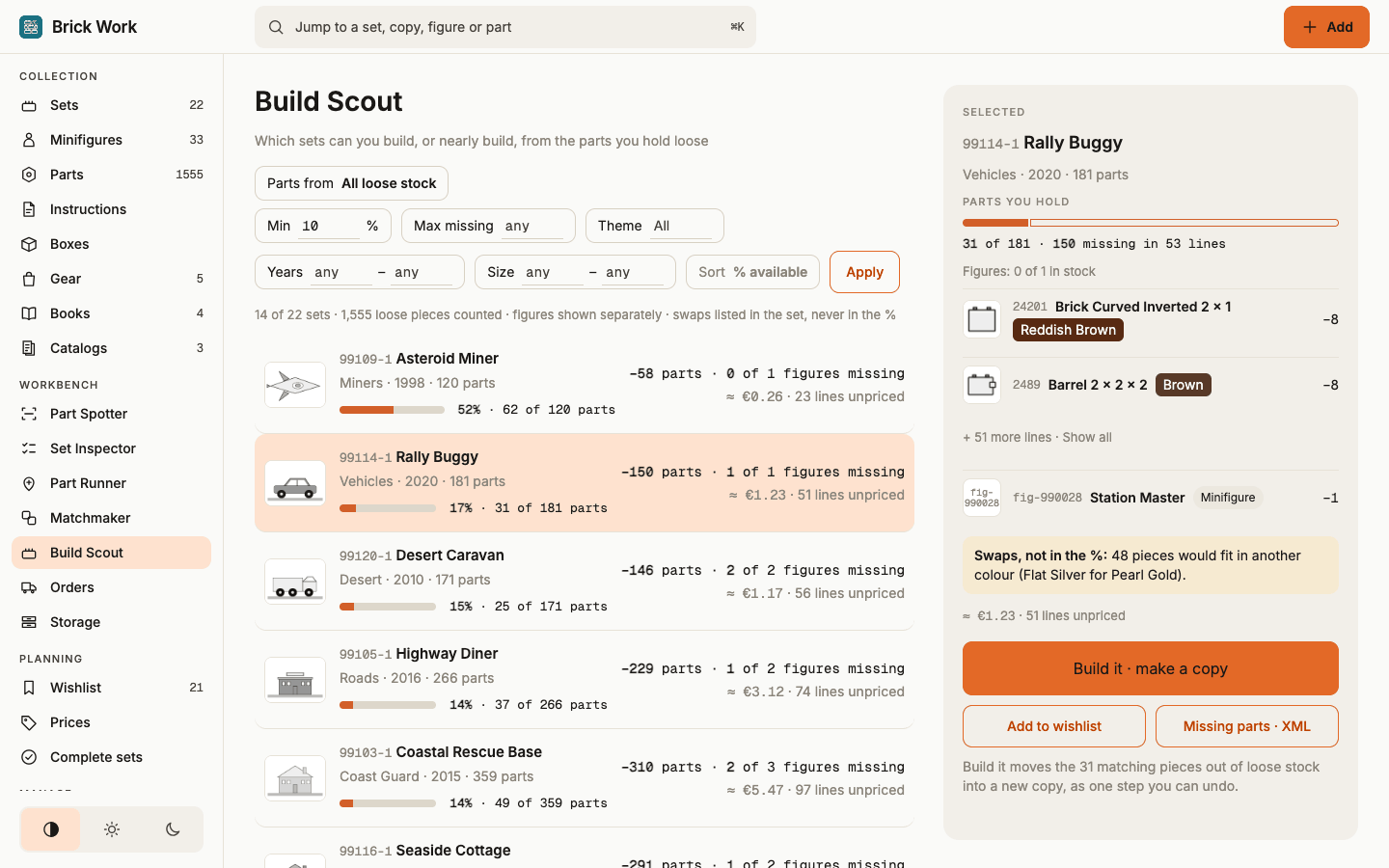
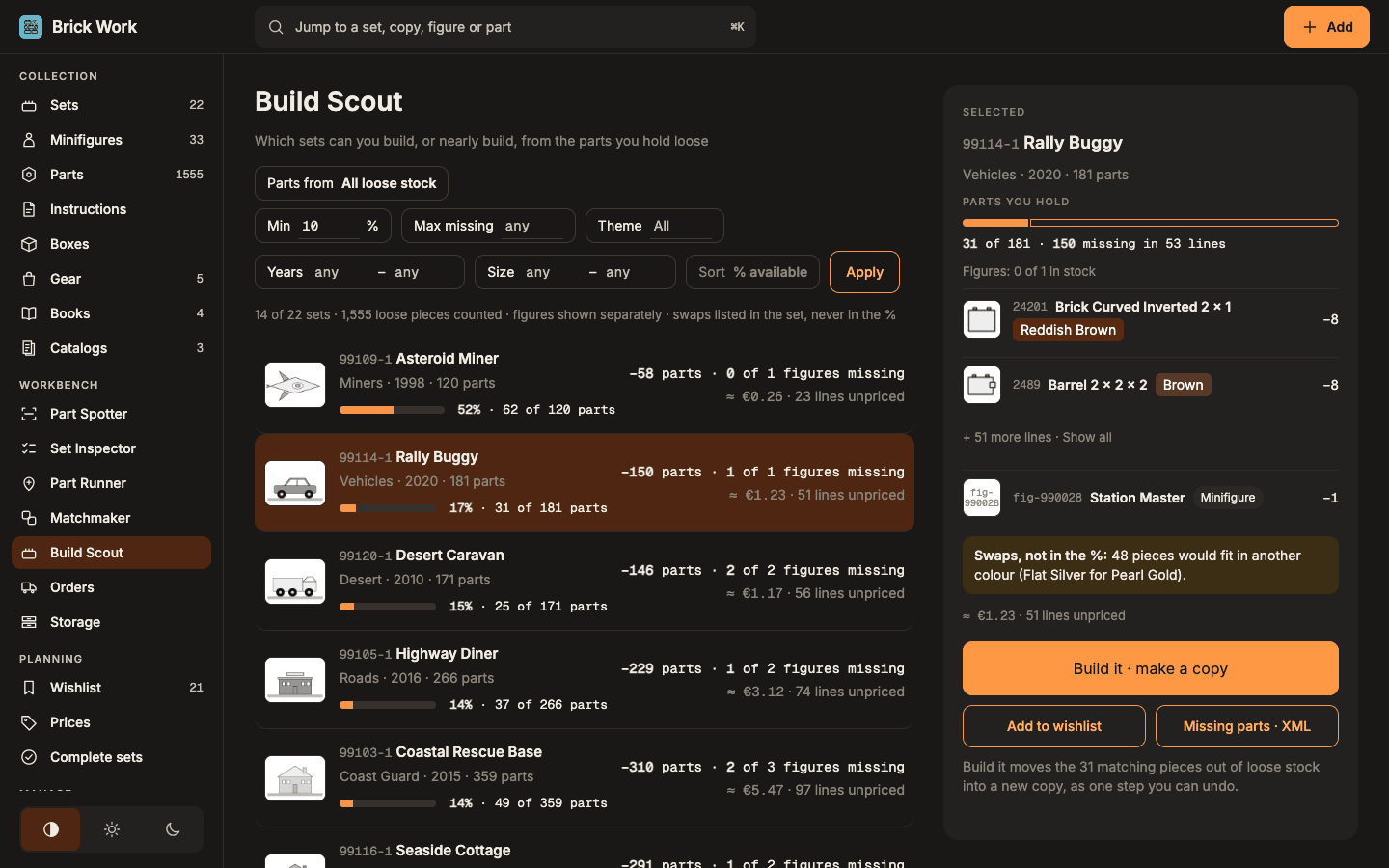
Add to wishlist notes the set as Buildable from stock, and Missing parts · XML downloads what is missing as a BrickLink wanted list. Find sets to build from your loose stock has the rest.
3. Order what is still missing
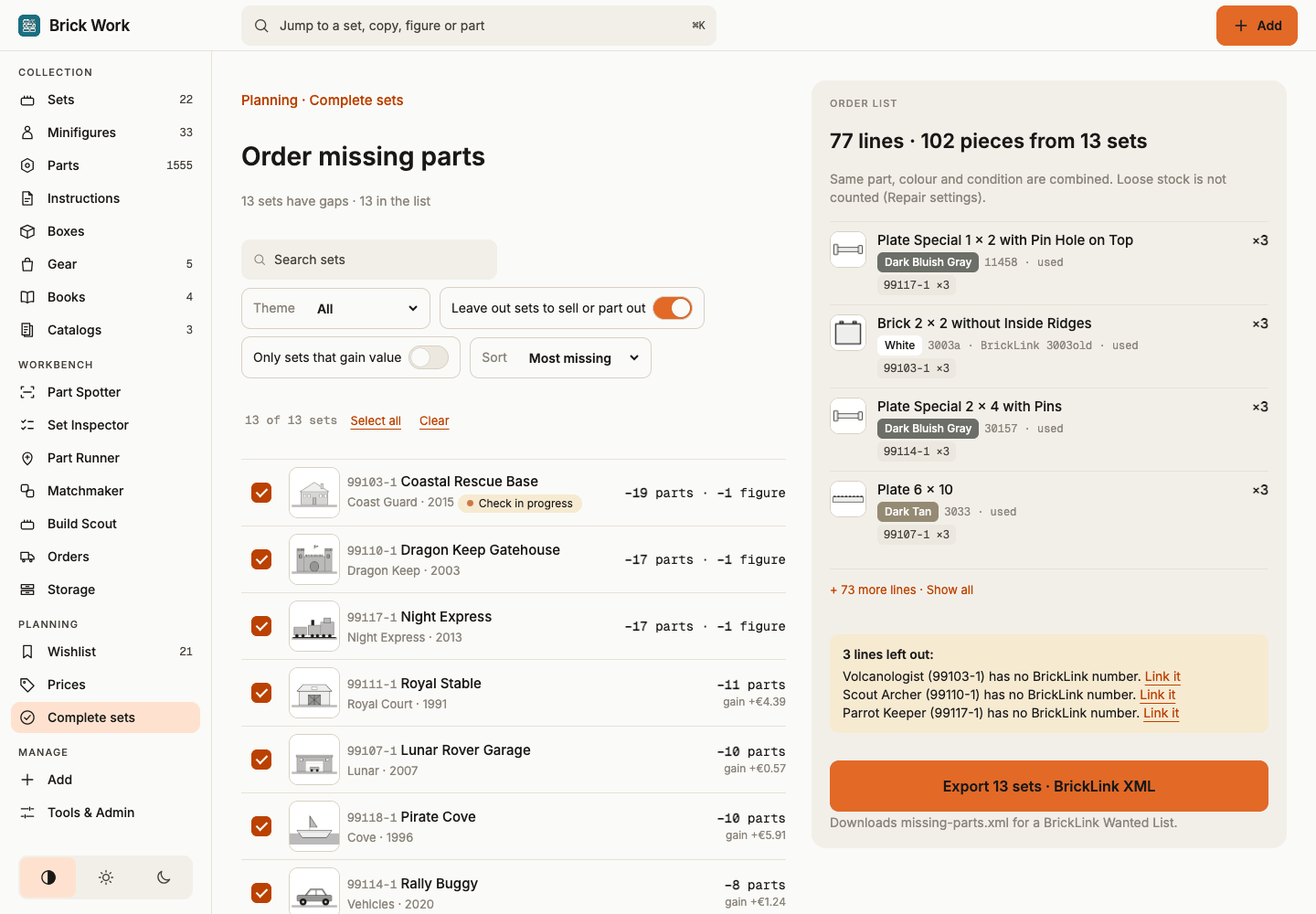
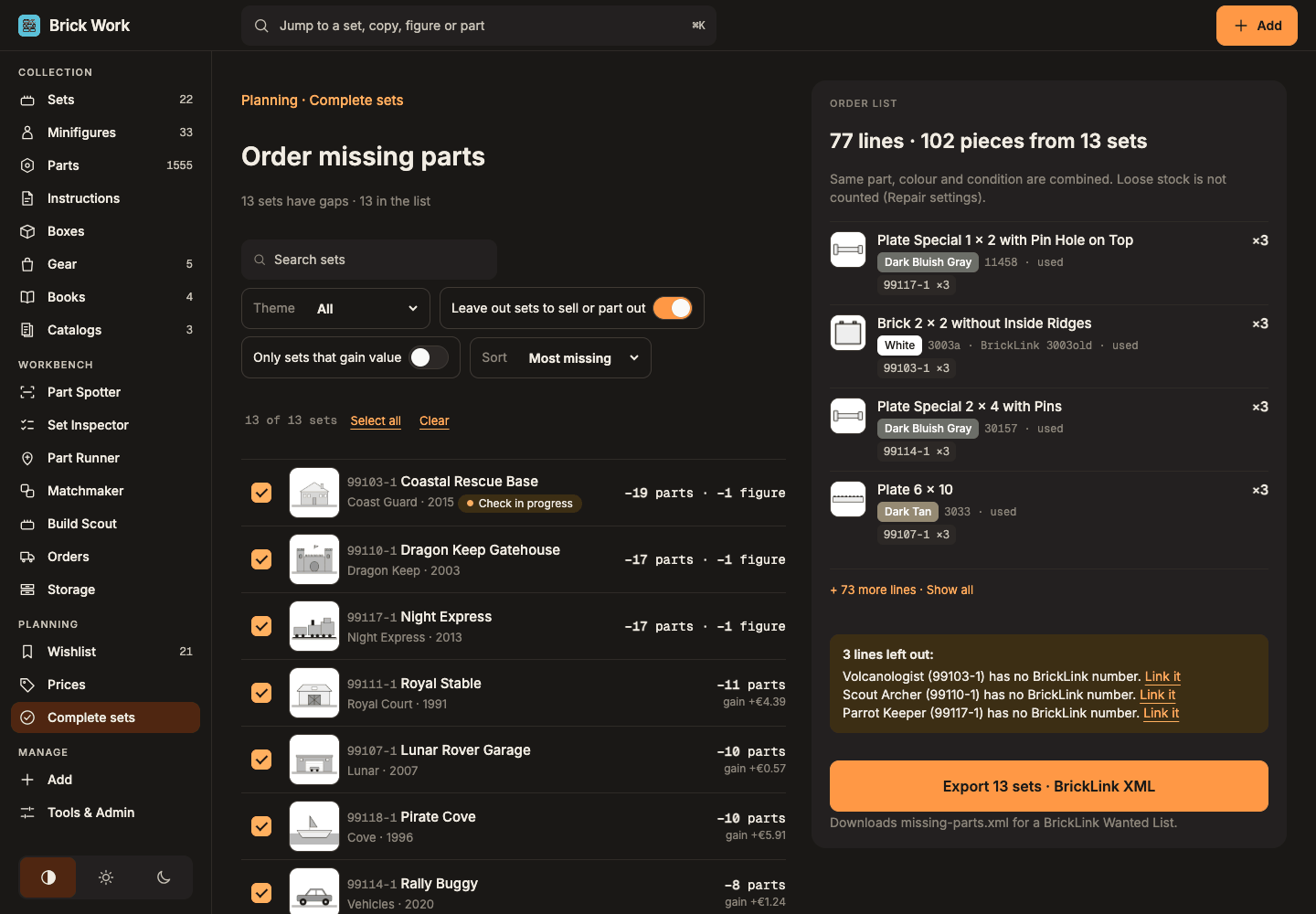
- Open Planning → Complete sets and press Order missing parts.
- Tick the copies whose gaps you want to fill. Leave out sets to sell or part out is on by default, so copies you plan to sell stay greyed and unticked.
- Read the order list on the right: its heading counts exactly the ticked sets, each line is a part, colour and condition combined over those sets, and a chip per set shows where the quantity comes from.
- On a phone, select Review list for the second step, then Export · BrickLink XML. The file
missing-parts.xmlis the same one Complete sets exports for those copies.
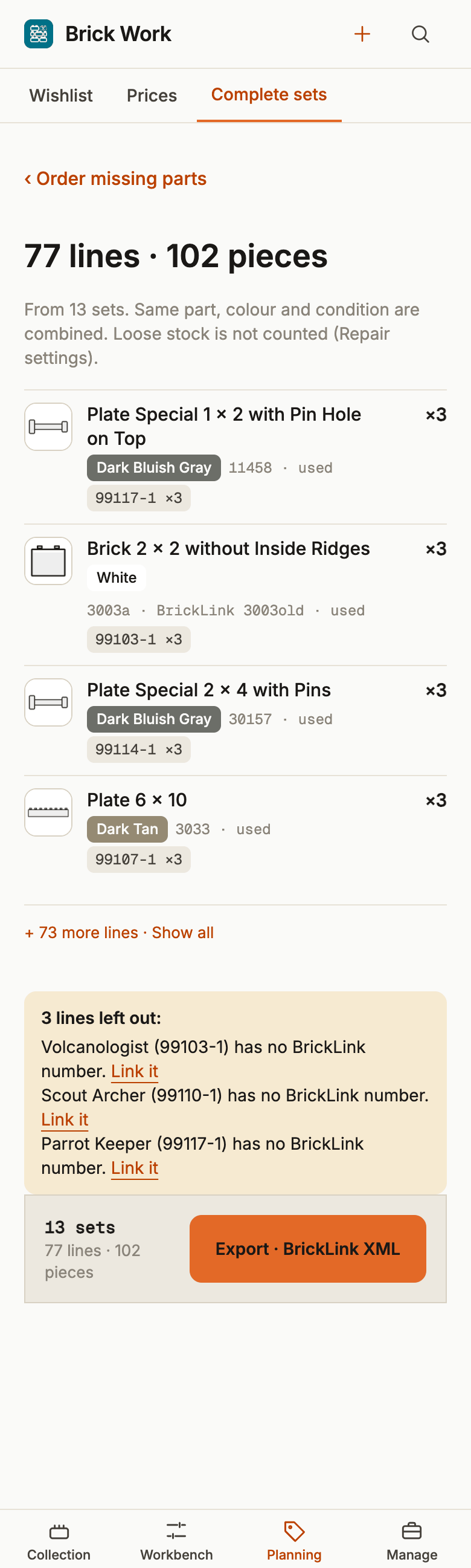
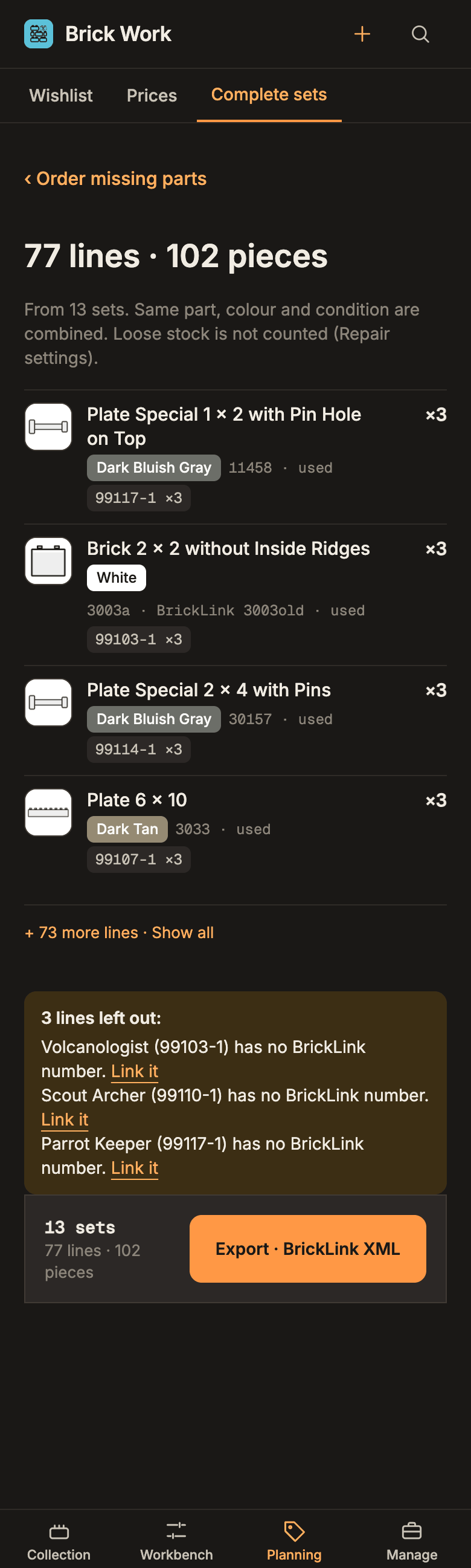
Lines Brick Work cannot name for BrickLink are listed in the yellow box with a link to the item, so you can link it and come back. The page only reads, so nothing in your collection changes.
If you own the wrong variant
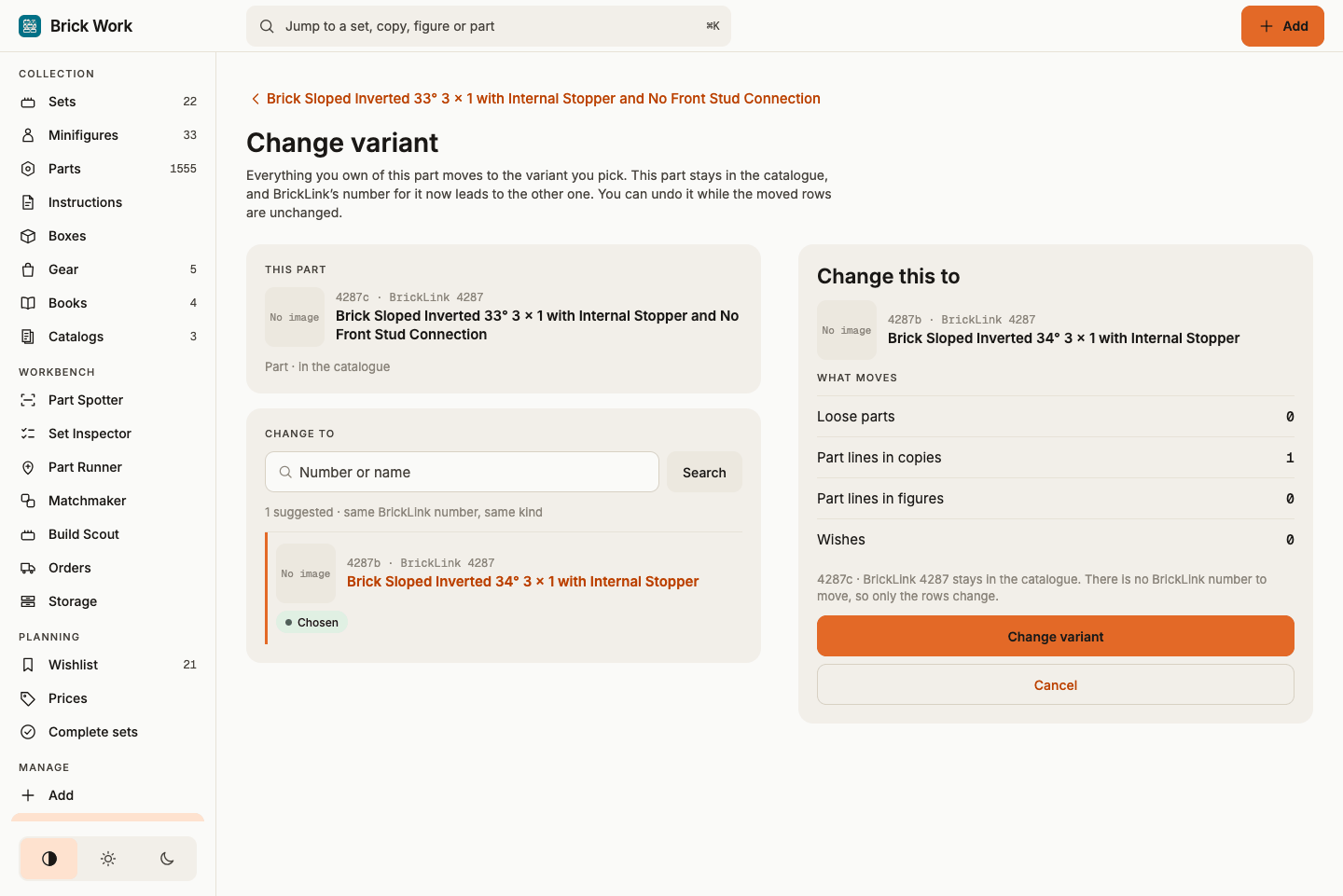
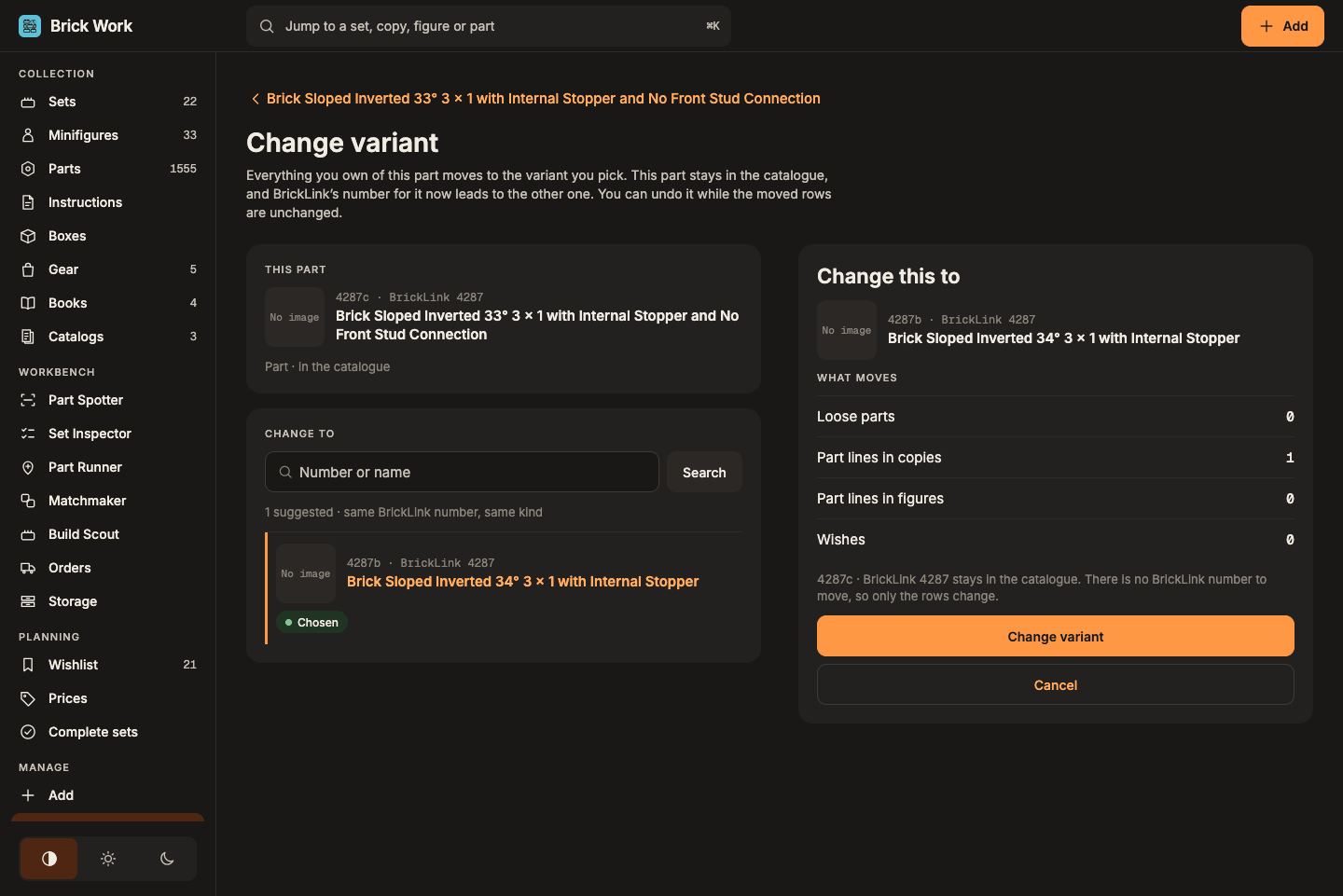
The catalogue sometimes lists the same part or figure twice, an older and a reissued variant, and your stock sits on the wrong one. On the item's page press Change variant… in the Links card, choose the variant you own, check What moves and confirm. Everything you own moves to the other item in one step with Undo, and the BrickLink number follows.
What you did
You ranked sets by what your stock covers, built one from it, and collected the missing parts of several sets into one wanted list. From here:
- Find sets your loose stock can finish for the sets you already own.
- Decide which set to repair first to rank repairs by what they gain.
- Pick parts for several sets to fill gaps from your drawers before you buy.