Build from your bulk
You have sets that lack a few parts and a pile of loose parts that might fill the gaps. In this tutorial you give the loose parts a home, pick the missing parts of several sets in one pass through your drawers, and then let Brick Work show which sets your loose stock now finishes.
It takes about 20 minutes. You need a Brick Work install with some copies that have recorded missing parts and some loose parts in stock. The pictures come from the invented demo collection, so your numbers will differ.
1. Give your loose parts a drawer
- Open Workbench → Storage. The list shows every storage you have, with its sets, figures and part lots. Anything with no place sits under Not stored.
- Press Add storage.
- Enter a Name, for example Drawer 14. Choose Drawer under Type. If the drawer is in a cabinet or a box, choose that under Inside.
- Press Add storage. The new drawer appears in the list.
- Open Collection → Parts, turn on Select mode, and tick the loose parts that belong in that drawer.
- In the bar that appears, under Change, choose Storage. Under Value, choose your drawer. Press Save.
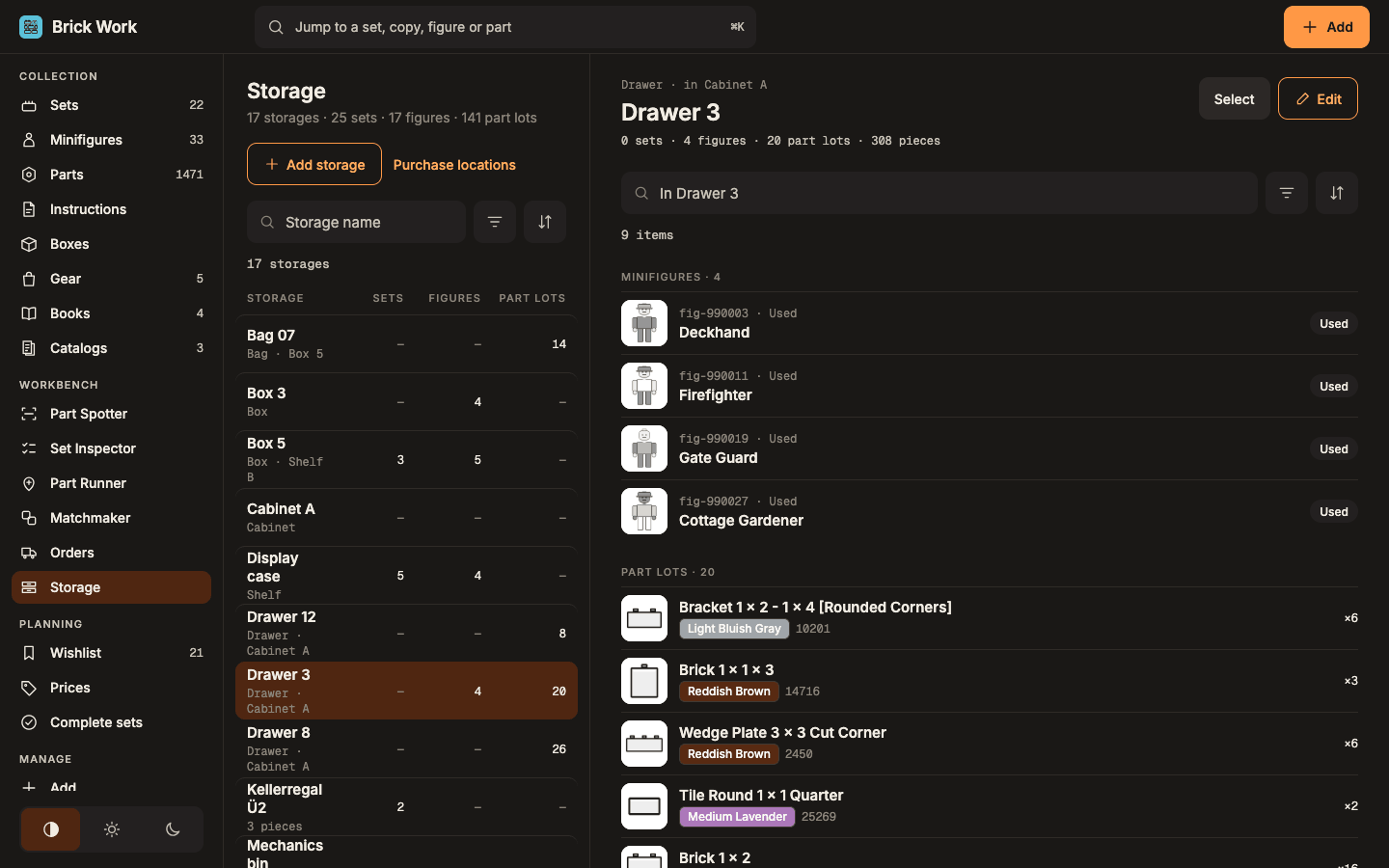
- Go back to Workbench → Storage and select the drawer. You see its part lots with their counts.
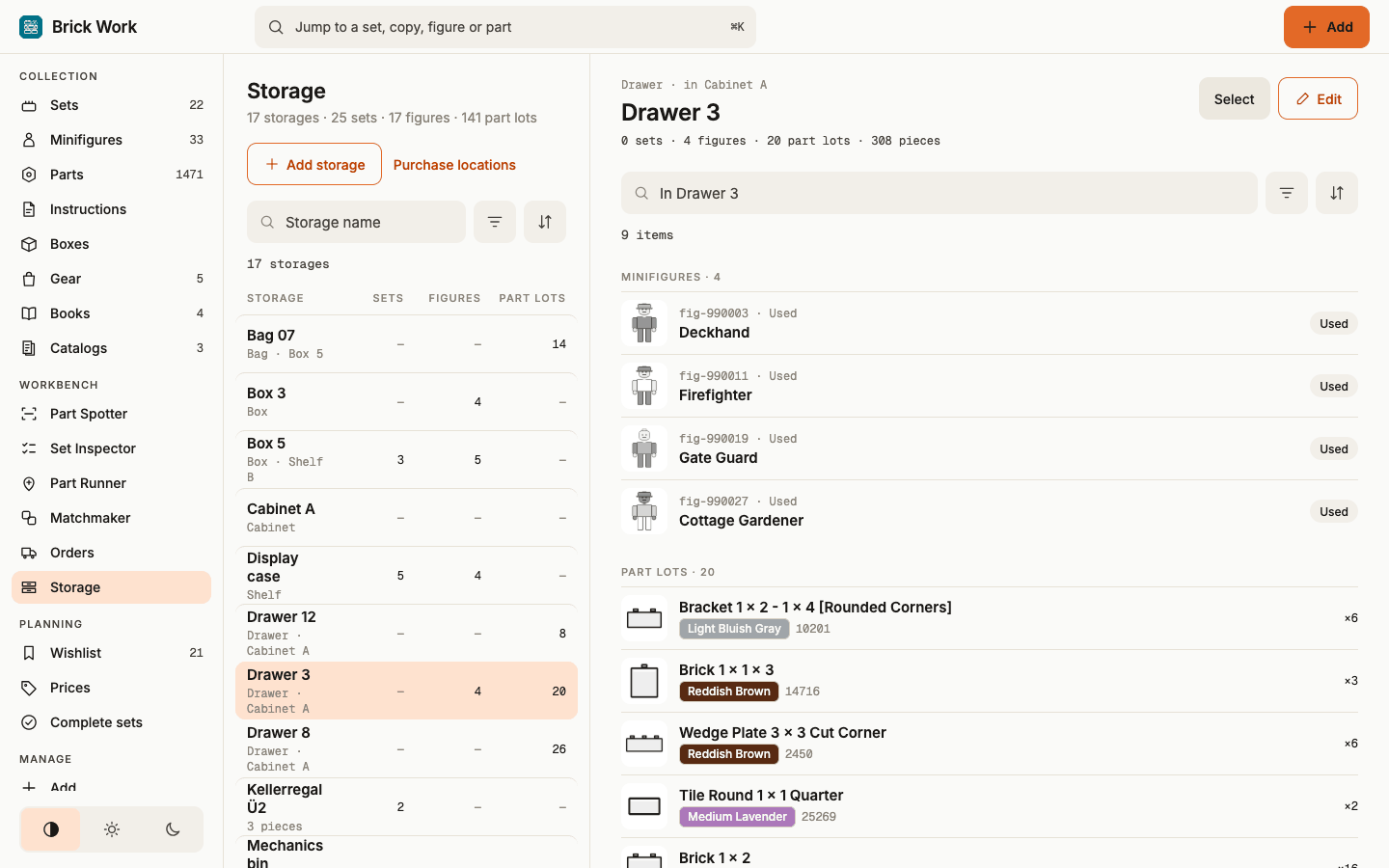
Repeat steps 2 to 6 for each drawer you want Part Runner to know about. Know where things are covers boxes inside boxes, moving things between storages and Undo.
2. Pick for several sets in one pass
Part Runner collects the missing parts of several sets while you walk along your drawers once. It works from the gaps recorded on your copies.
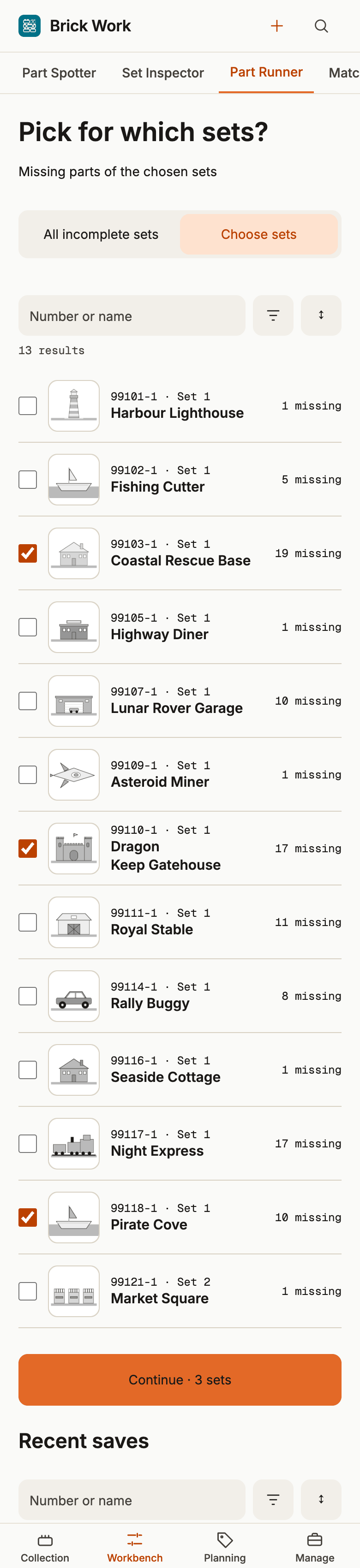
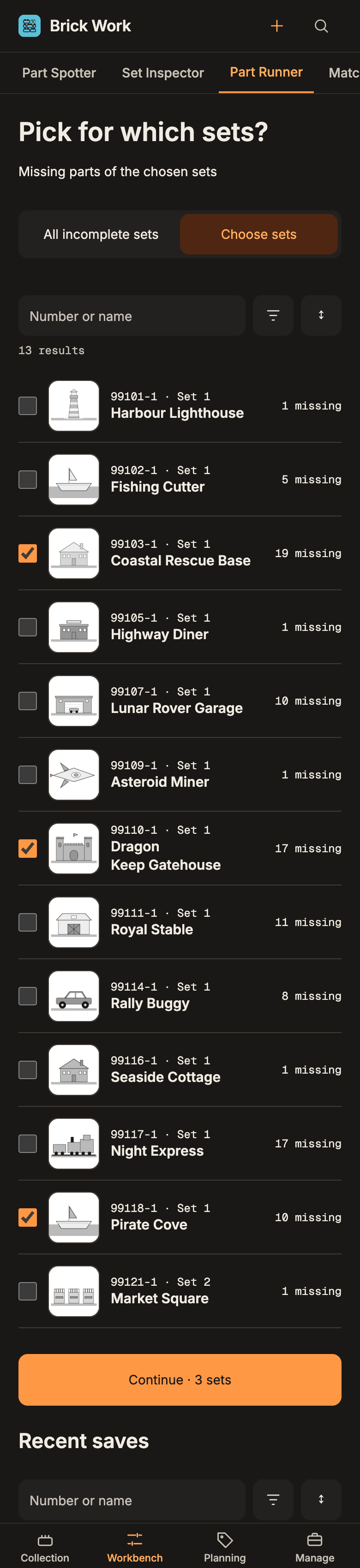
- Open Workbench → Part Runner. Under Pick for which sets? you see every copy with recorded missing parts and how many it is missing.
- Select Choose sets and tick three or four sets. (All incomplete sets takes every one.)
- Select Continue · N sets, where N is the number you ticked.
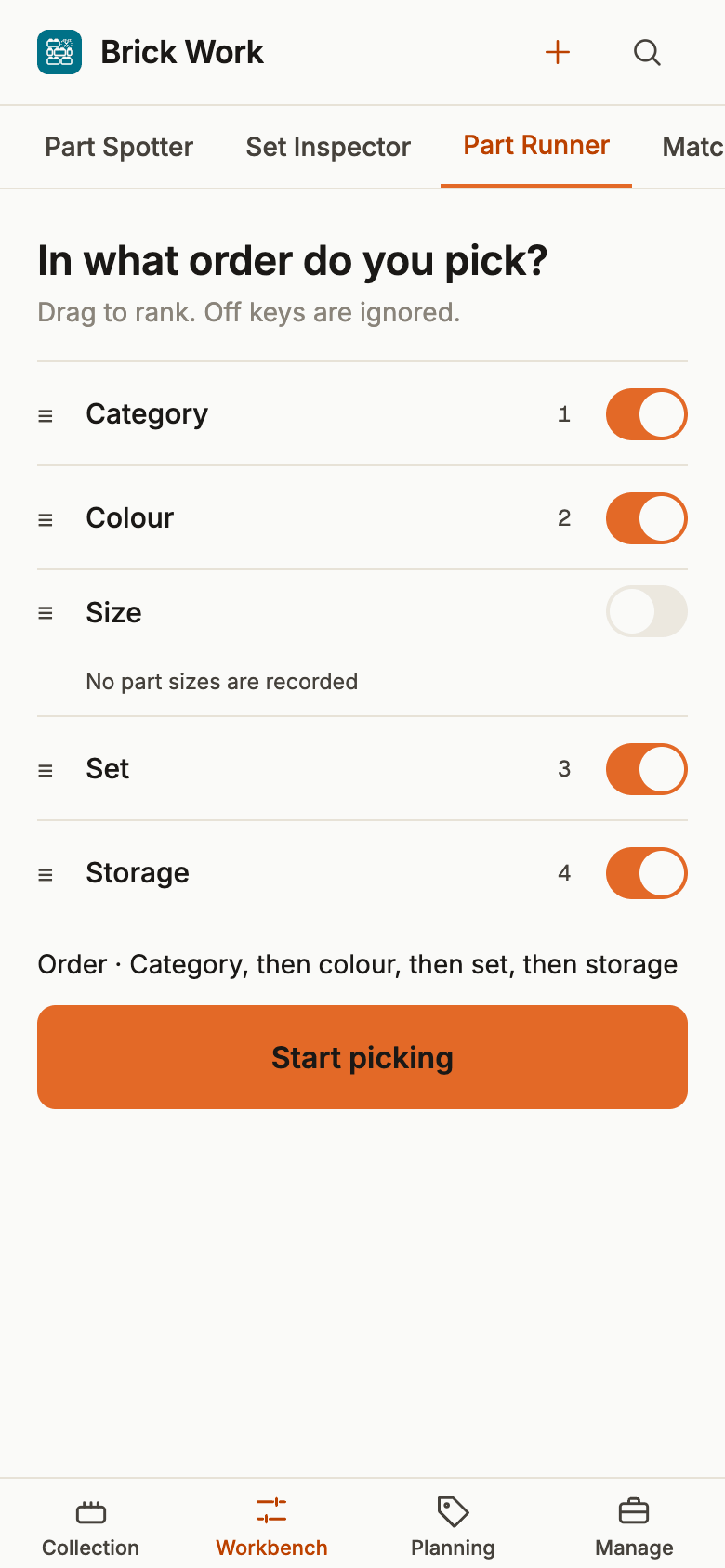
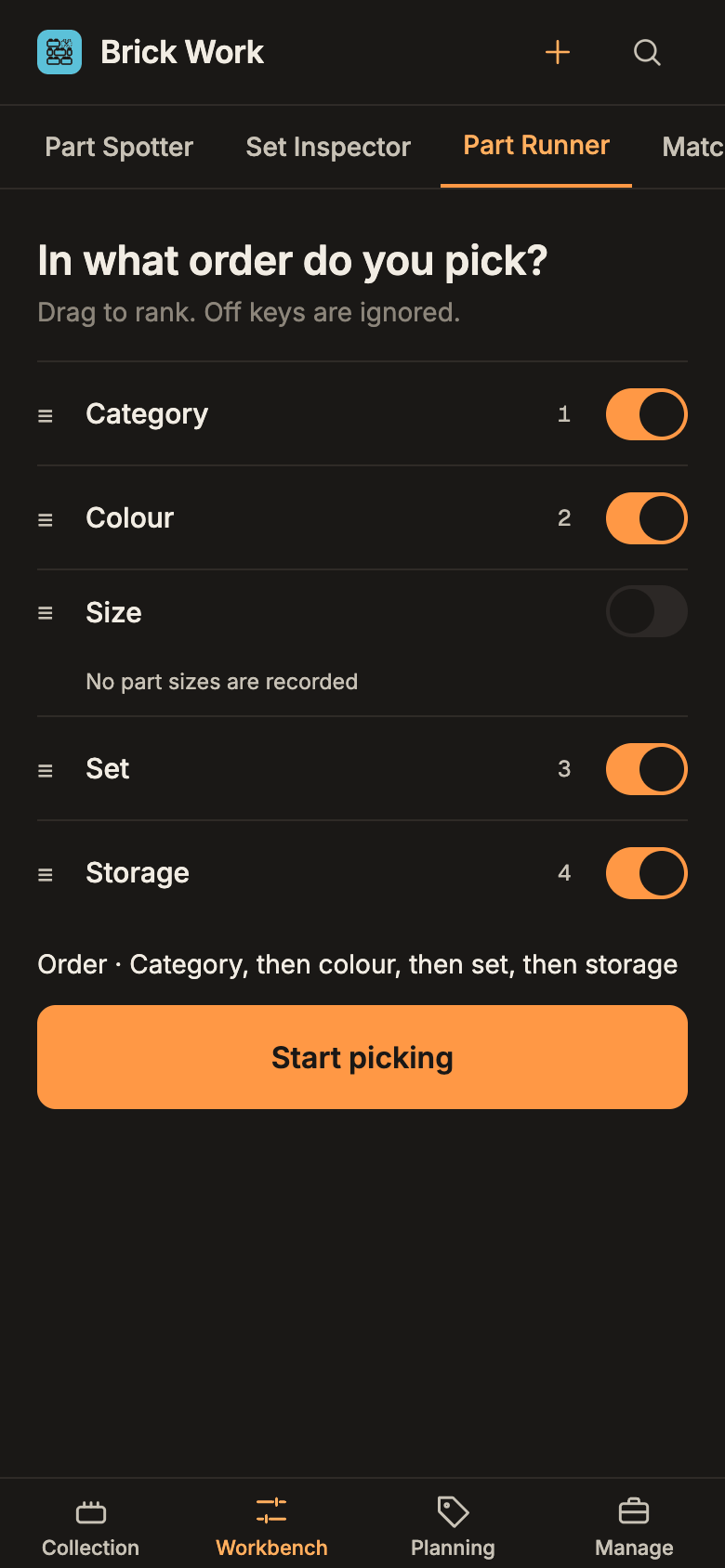
- Under In what order do you pick?, you see the keys Category, Colour, Size, Set and Storage. A line under them says which order you get. Keep Storage switched on: it puts the parts that sit in the same drawer next to each other. A key with nothing to sort by is switched off and says why.
- Select Start picking.
- Part Runner shows one part at a time: its picture, colour and number, Pick N, and which sets need how many. A part that three sets need appears once, with the total.
- Find the part in your drawer and select Found it.
- Choose where it goes. Add to set lowers the missing count of the sets that need it. Set how many go to each set with − and +. Select Confirm.
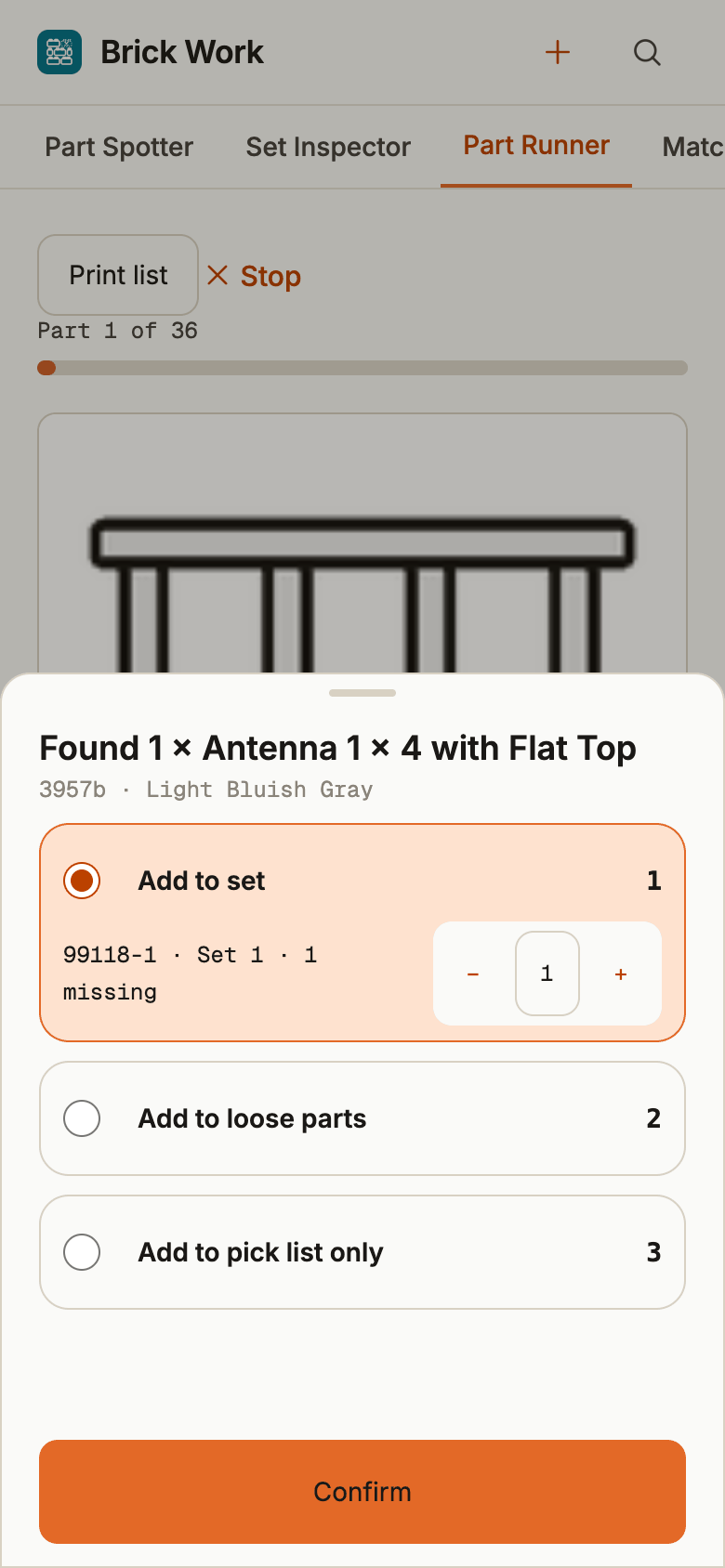
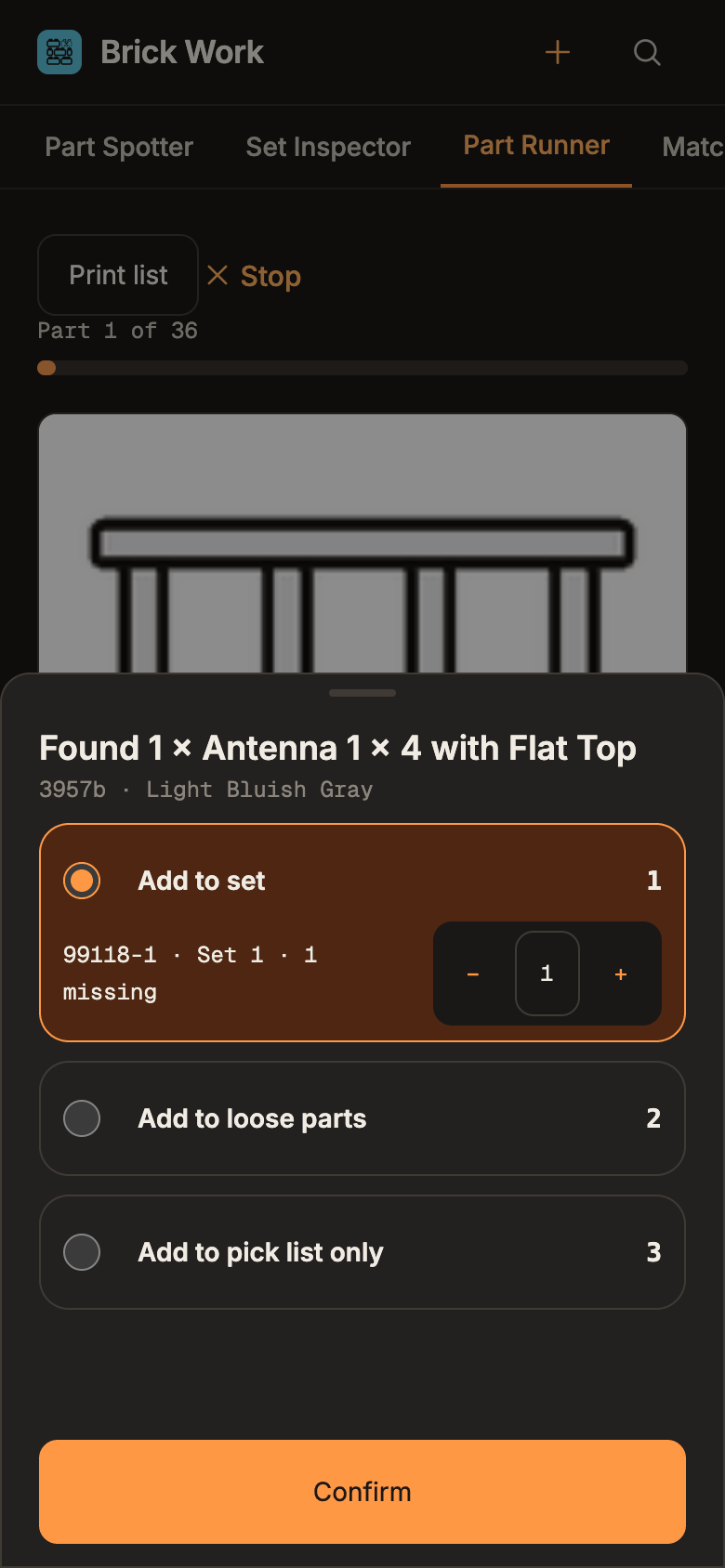
- Part Runner moves to the next part. Use Skip for later for a part you cannot find; its missing count stays as it is.
- Select Stop when you are done. Every save is listed under Recent saves, each with its own Undo.
Pick parts for several sets explains the pick order in full, the keyboard keys, and how to print the list or save it as CSV.
3. See which sets your loose stock finishes
Part Runner takes parts you find. Matchmaker works the other way round: it looks at your loose stock and shows which incomplete sets it can fill.
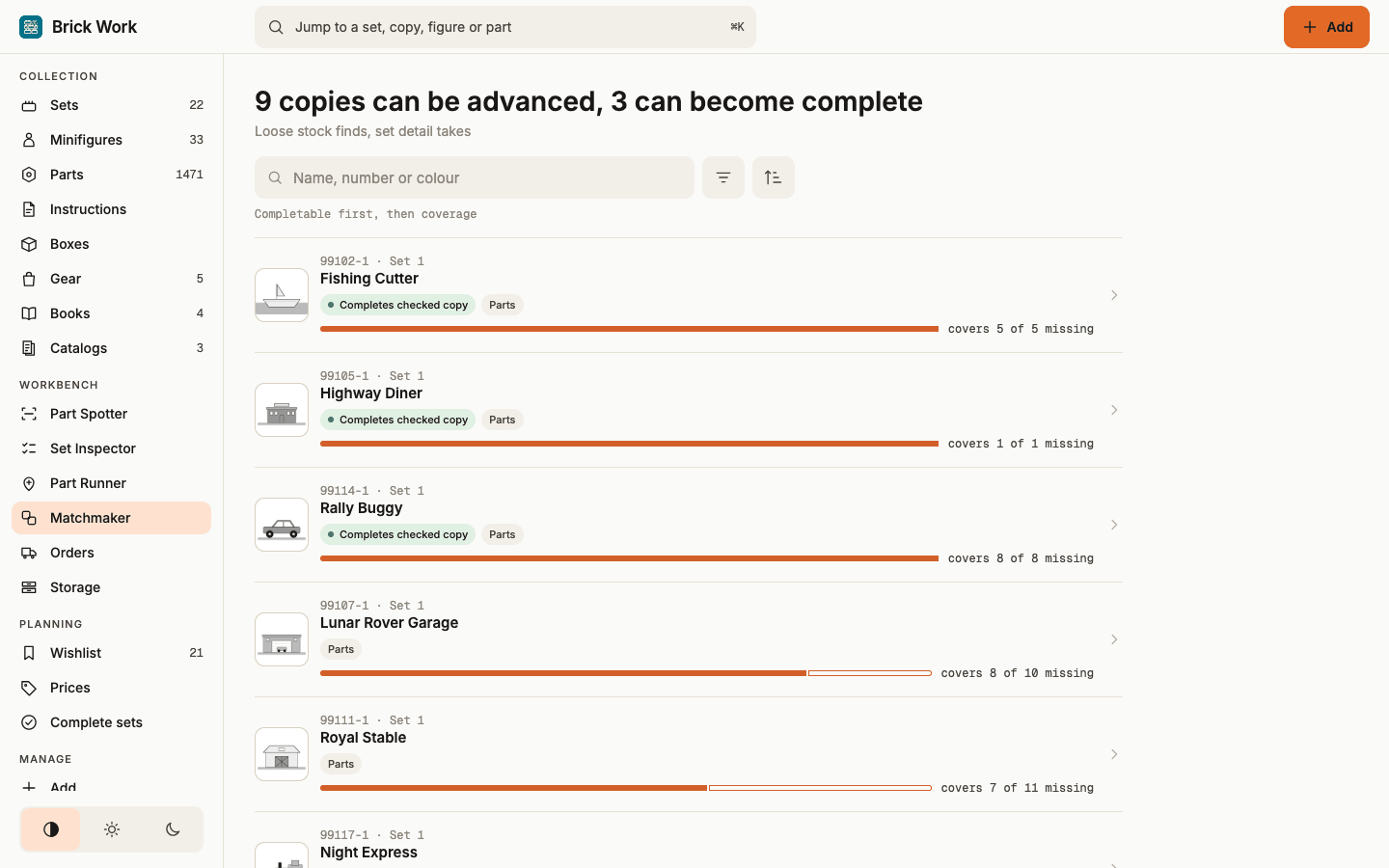
- Open Workbench → Matchmaker. The heading says how many copies can be advanced and how many can become complete.
- Look at the list. Copies that loose stock can finish come first and carry Completes checked copy. Each copy also shows covers N of M missing.
- Select a copy that completes to open it. Each line shows the part and Needs N · have M.
- Find the part in your stock. Set Transfer count if you want to move fewer than suggested.
- Select Give N. The loose stock goes down by that count and so does the copy's missing count. The page reloads with the new numbers.
- Do the same for each line. When the last gap is filled the copy can count as complete.
A move is not a reservation: the same loose part can show against several copies, so work through one copy at a time. A copy becomes complete only when Set is checked is set on it. Every move is listed under Recent saves with an Undo.
What you did
You gave your loose parts a place, collected the missing parts of several sets in one trip, and moved loose stock into the sets it finishes. From here:
- Know where things are for more on storage.
- Pick parts for several sets for the full pick order and printing.
- Find sets your loose stock can finish for how matching works and how to narrow the list.