Finish a half-built set
Do this when you have a set that is not whole: bought used, or partly built, or one you suspect is short. You record what is missing, put those parts on a wishlist, receive the parts order and watch the copy turn complete. It follows the same path as the first tutorial, but goes on past the gaps. The pictures come from an invented collection: the set there is Coastal Rescue Base (99103-1), with 359 parts and 19 missing.
Before you start
You need Brick Work with the catalogue loaded and the copy added with Add, with Completeness left on Unknown · from checks (see Your first set if you have not done that). Use a small set. You also need a way to buy parts, such as a BrickLink store.
1. Find the copy
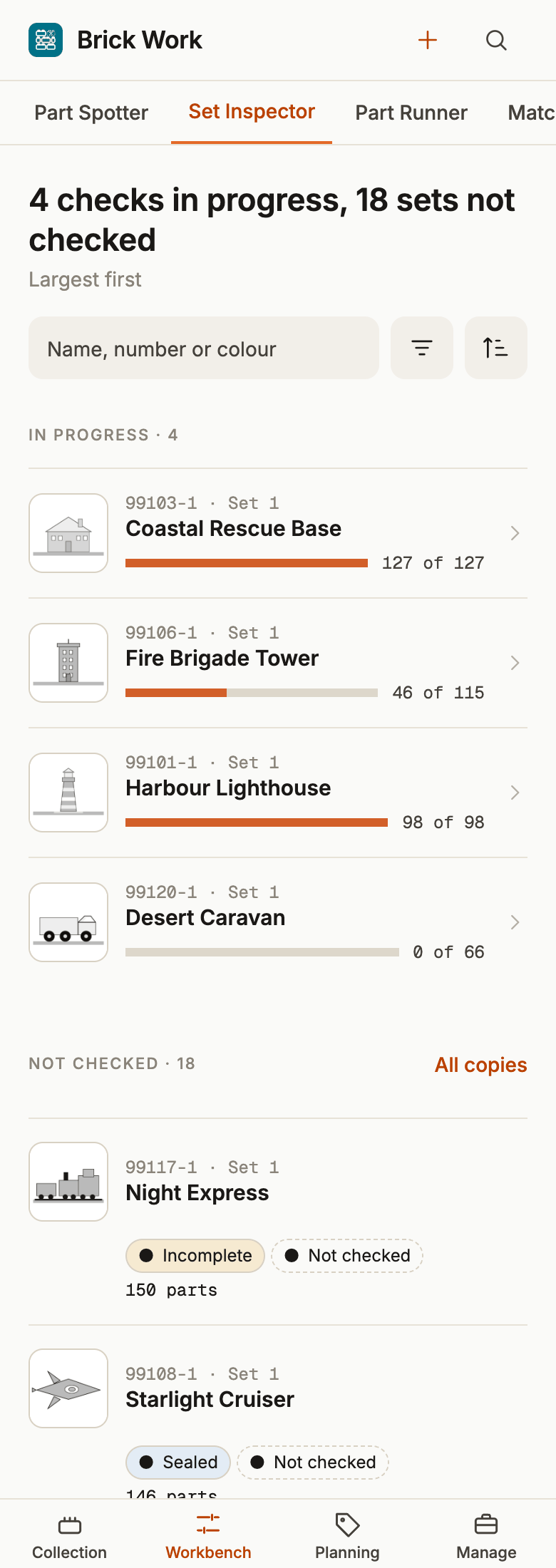
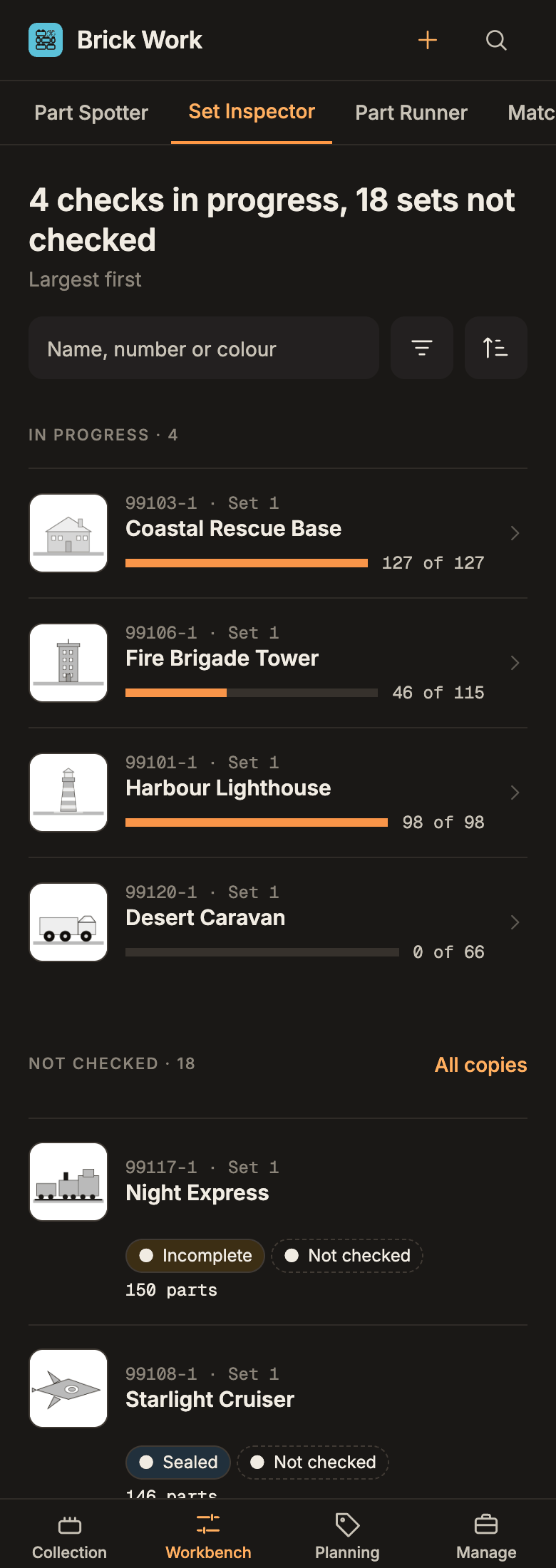
- Open Workbench → Set Inspector. The list shows your copies under In progress, Not checked and Checked.
- Choose your half-built copy under Not checked.
2. Check its parts
- On Start a check, keep Inventory order under Order and select Start.
- For each part, set the number you found with − and +, then select Found N. For a part that is not there at all, select Missing. Skip for later leaves the part for the end.
- After the last part, the end of the check shows 1 Skipped, 2 Missing and 3 Save. Deal with the skipped parts (Check the N skipped parts or Leave them unchecked).
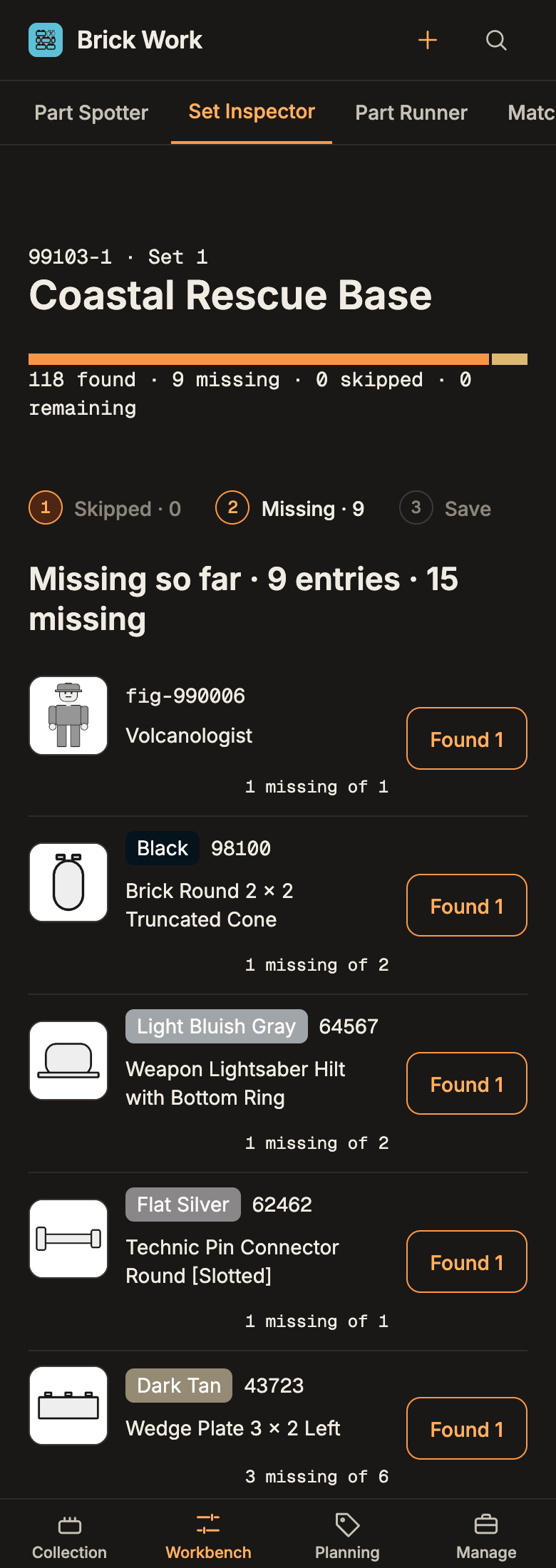
- Missing so far now lists every gap: the picture, the colour, the part number, the name and how many are missing of how many. Write down the part numbers and colours. You need them in the next step.
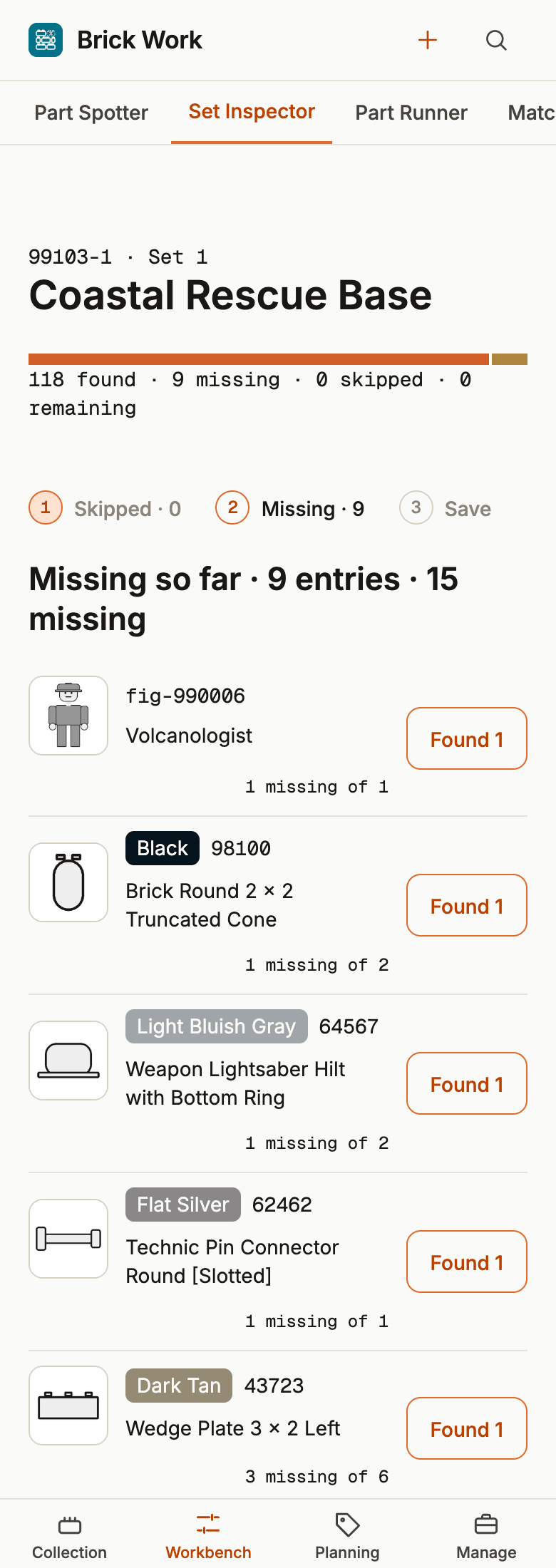
- Select Done · N still missing. Tick Set is checked and select Done.
The copy still reads Incomplete: it has gaps. That is right for now. Every button and variant is in Check a set's parts.
3. Put the missing parts on a wishlist
Brick Work does not copy the missing parts onto a wishlist for you. You add each one as a wish. For a few parts this is quick.
- Open Manage → Add.
- Under What, choose Part. Under Where, choose Wishlist. The Wishlist destination shows the lists you have.
- Under Search, type the part number from Missing so far. Select Select next to the part and select Review 1 item.
- In the review row, select Choose a colour and pick the colour from your list. Set Quantity to the number missing. Under Wishlist, choose the list.
- Select Add 1 item to the wishlist. Repeat for each missing part.
Open Planning → Wishlist to see them. The list chips at the top hold your lists, and All lists shows every wish. To keep these parts apart from other wishes, make a list of their own with Manage lists and New list, then pick it in step 4.
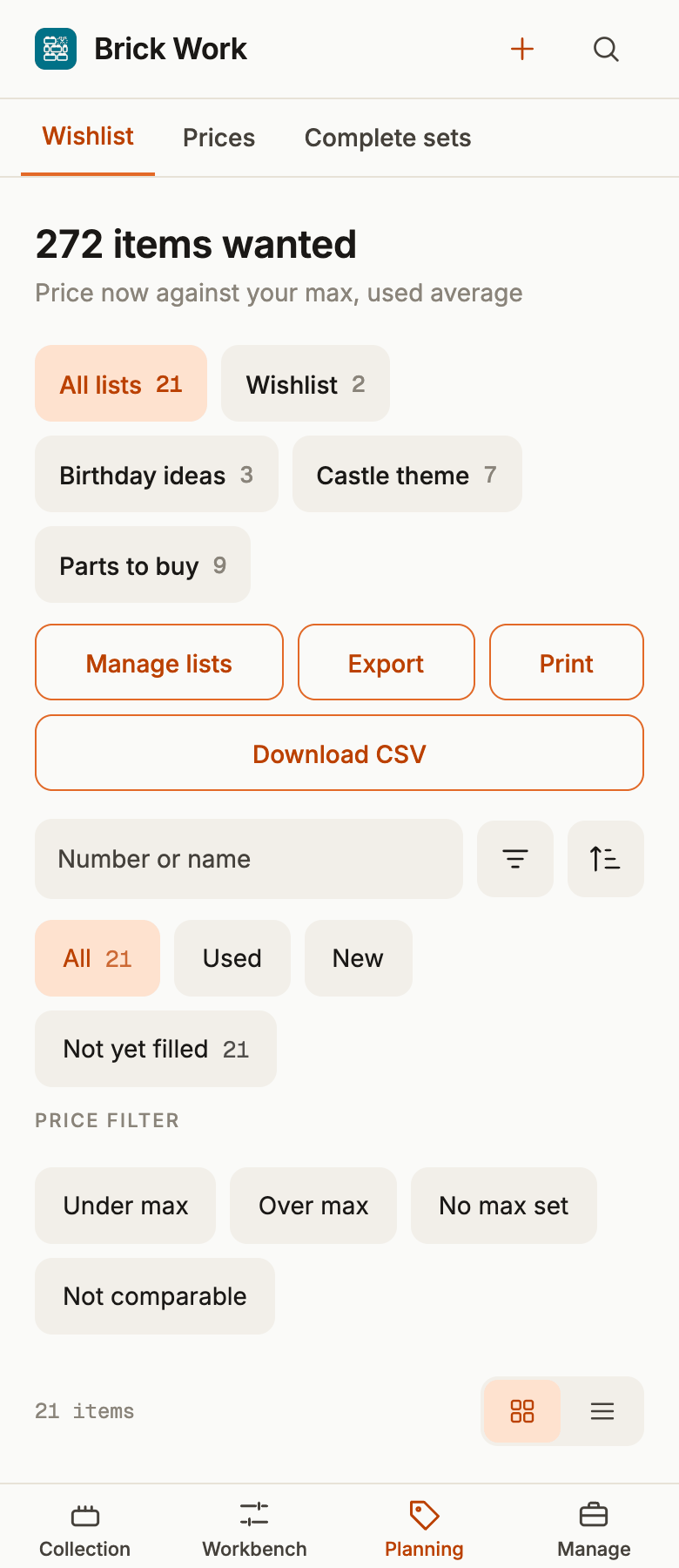
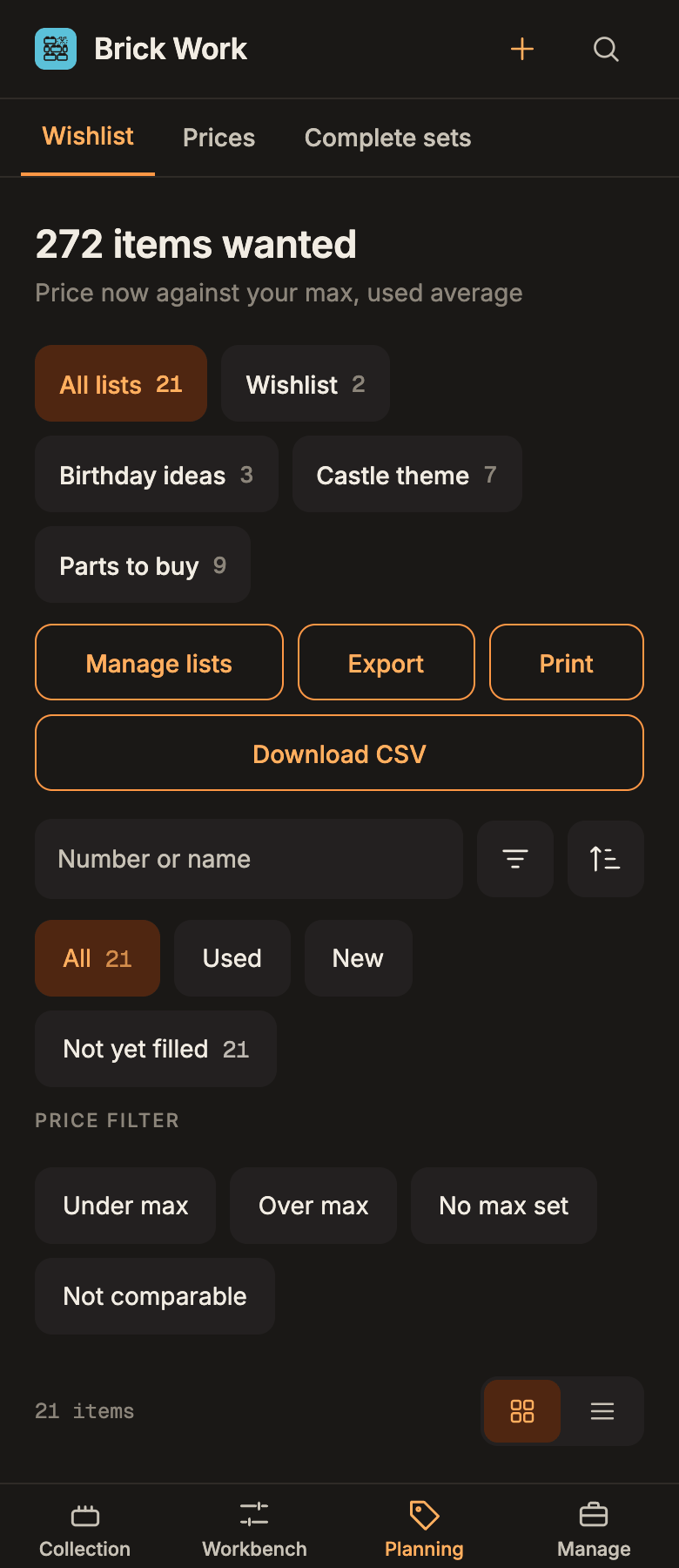
To buy, choose the list chip, select Export, choose BrickLink XML under Format and select Export again. Upload that file as a wanted list on BrickLink and order the parts there. Lists, moving wishes and the Rebrickable CSV are in Manage wishlists.
4. Receive the order
When the parts arrive, bring the order in and count it.
- Open Workbench → Orders. Under Import an order, choose a way in: Paste order email and Read email, BrickLink XML upload and Import and review, or Import a placed order if you have a BrickLink key.
- Open the order, then the document under Documents · resume review. Match any line marked Unmatched, then select Finish review and Save lines.
- Select Count what arrived. Set Received on each line with + and −, or select Mark all received. Select Save partial receipt.
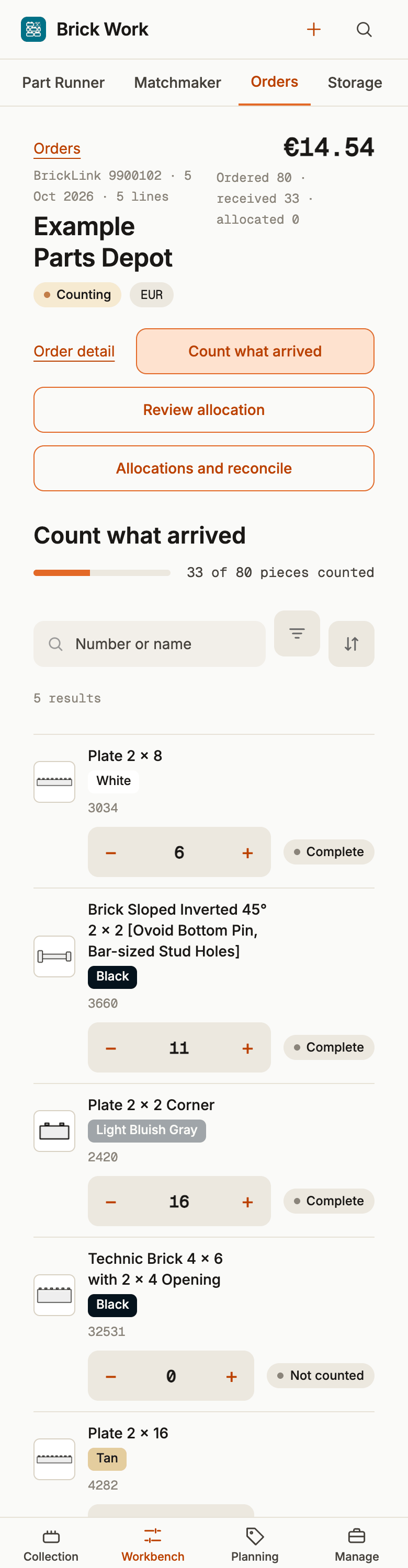
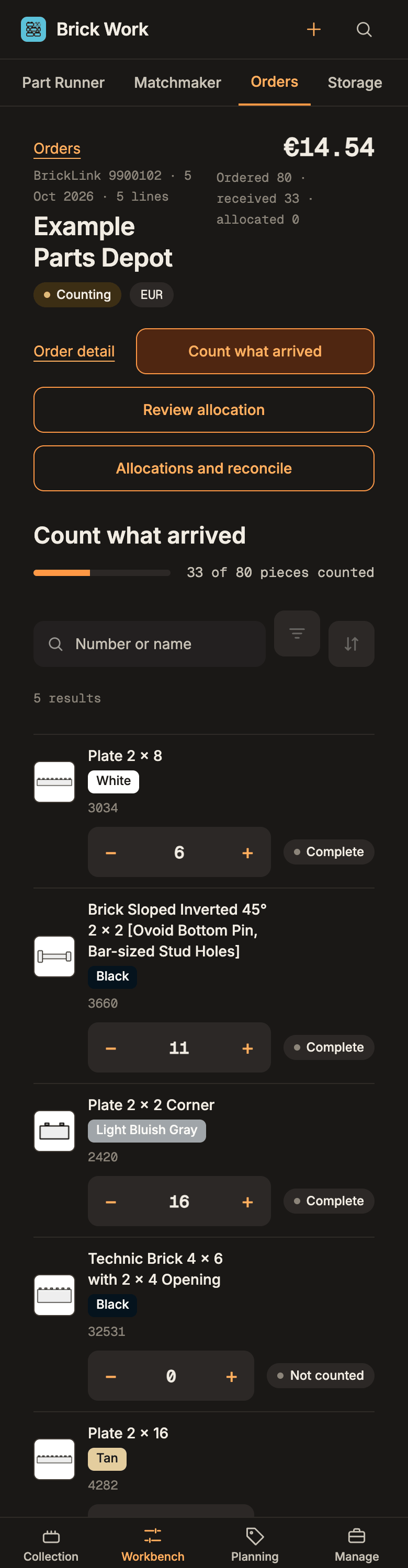
- Select Review allocation. Brick Work suggests where each piece goes: missing parts in your copies first, the rest to Loose stock. The suggested quantity for your copy is already filled in. Check each line.
- Select Confirm allocation. The page says Allocated N pieces, with an Undo beside it.
The step-by-step version, with held lines and the short list, is Receive a parts order.
5. See the copy complete
- Open Collection → Sets and select your copy. The missing counts are gone: the gaps you recorded were lowered by what you allocated.
- The copy's completeness changes from Incomplete to Complete.
It changes on its own because you ticked Set is checked in step 2 and nothing is missing or damaged any more, minifigures included. A copy whose completeness you set by hand keeps that value, and a damaged part keeps a copy Incomplete. See Completeness.
What you did
You checked a copy, listed what it lacked, bought it and put the parts in. From here:
- Pick parts for several sets if you have loose stock that fills gaps without a purchase.
- Decide which set to repair first when several sets have gaps.